New article
Recently updated
Managing Sites efficiently

Who is this article for?
Administrators who need to manage Sites.
Administrator permissions are required.
This tutorial guides you through managing sites in Ideagen Regulatory Intelligence, including adding new sites, configuring permissions, and updating site details.
1. Managing Sites efficiently
1.1 Video
1.2 Steps
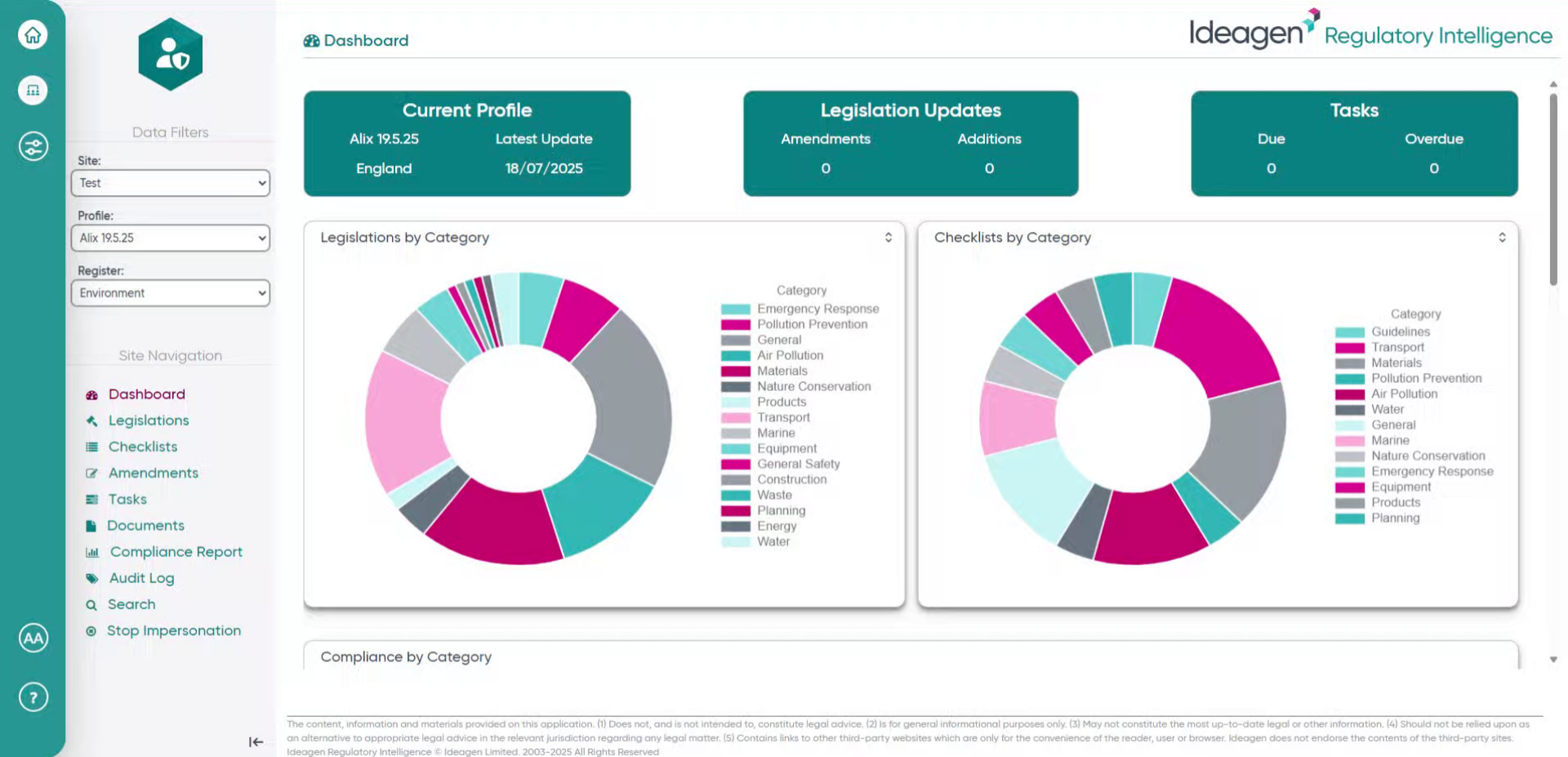
- From the main Dashboard page.
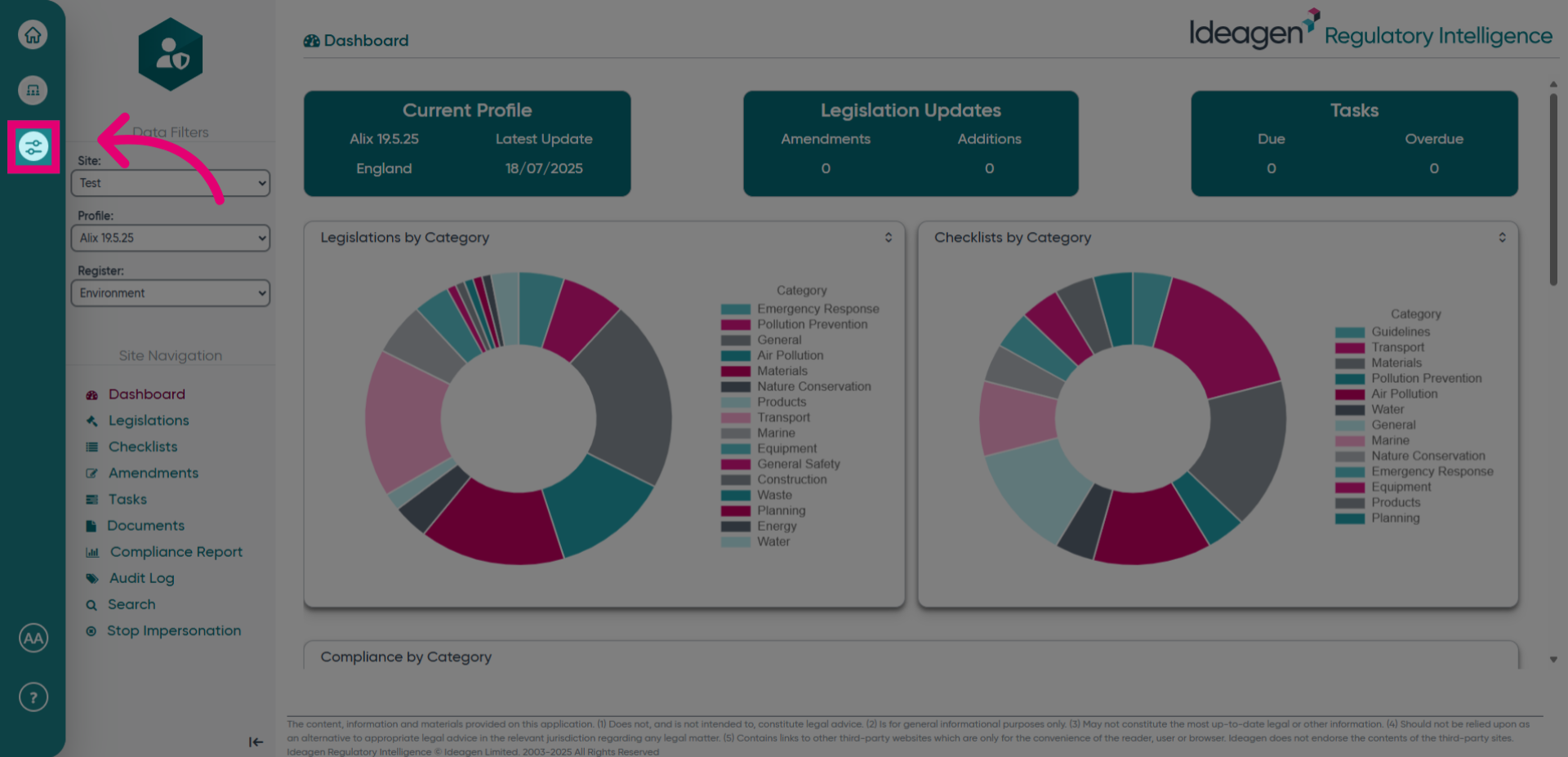
- Open the main menu to begin managing your sites.
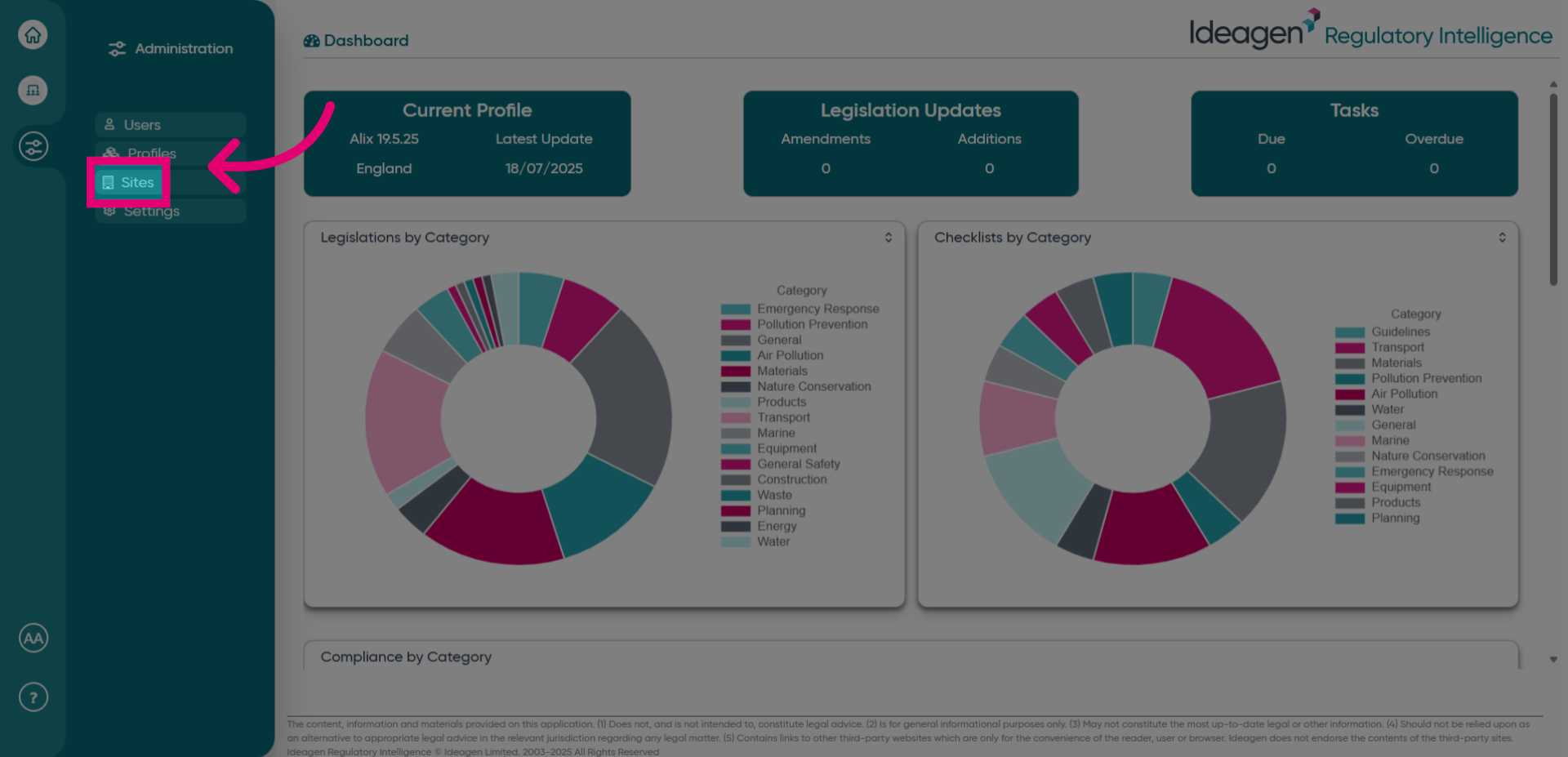
- Select the Sites option to access the site management area.
- Click Add Site to start creating a new site entry.
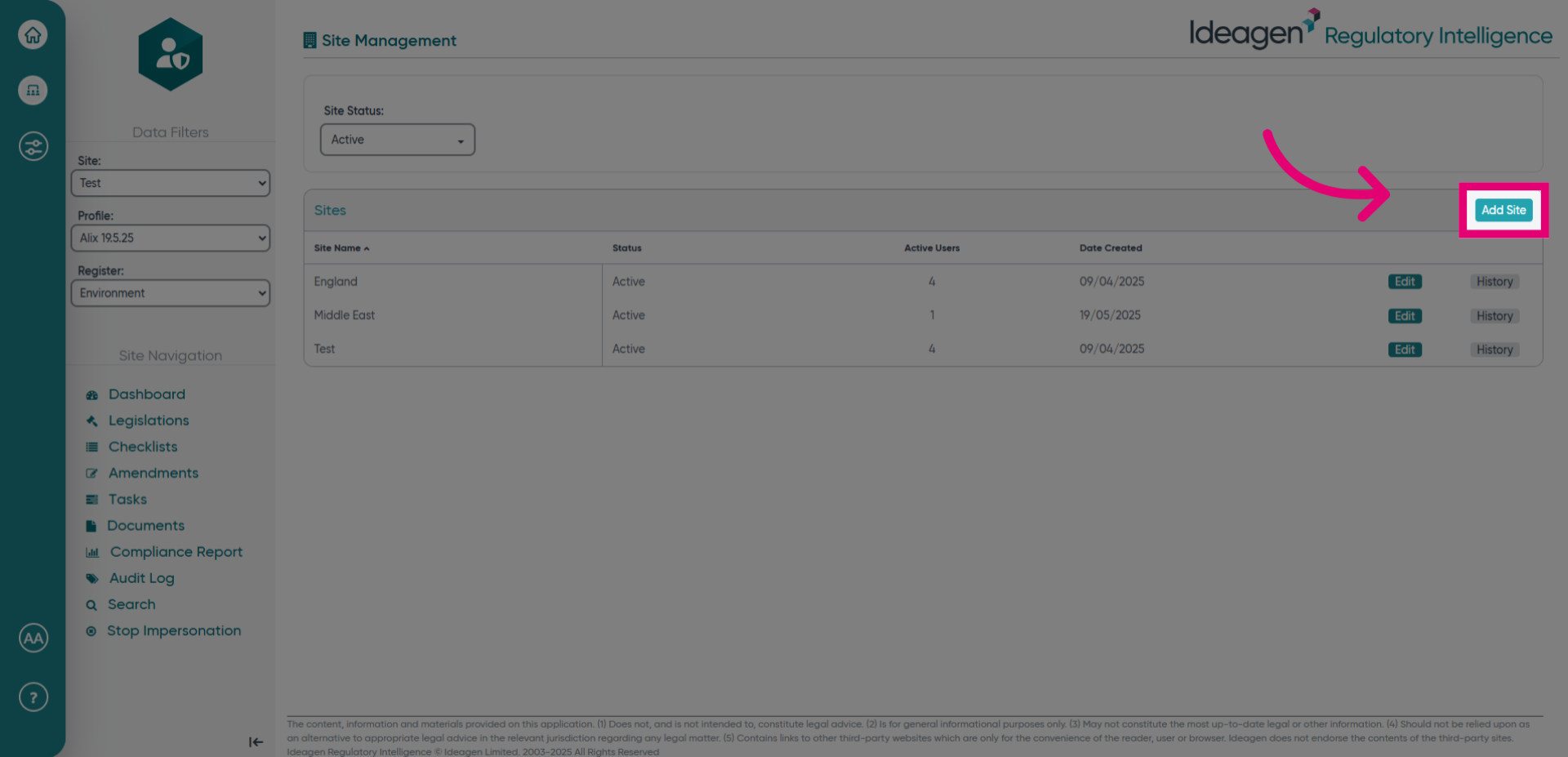
- Click the Site Name: field to specify the name of your new site.
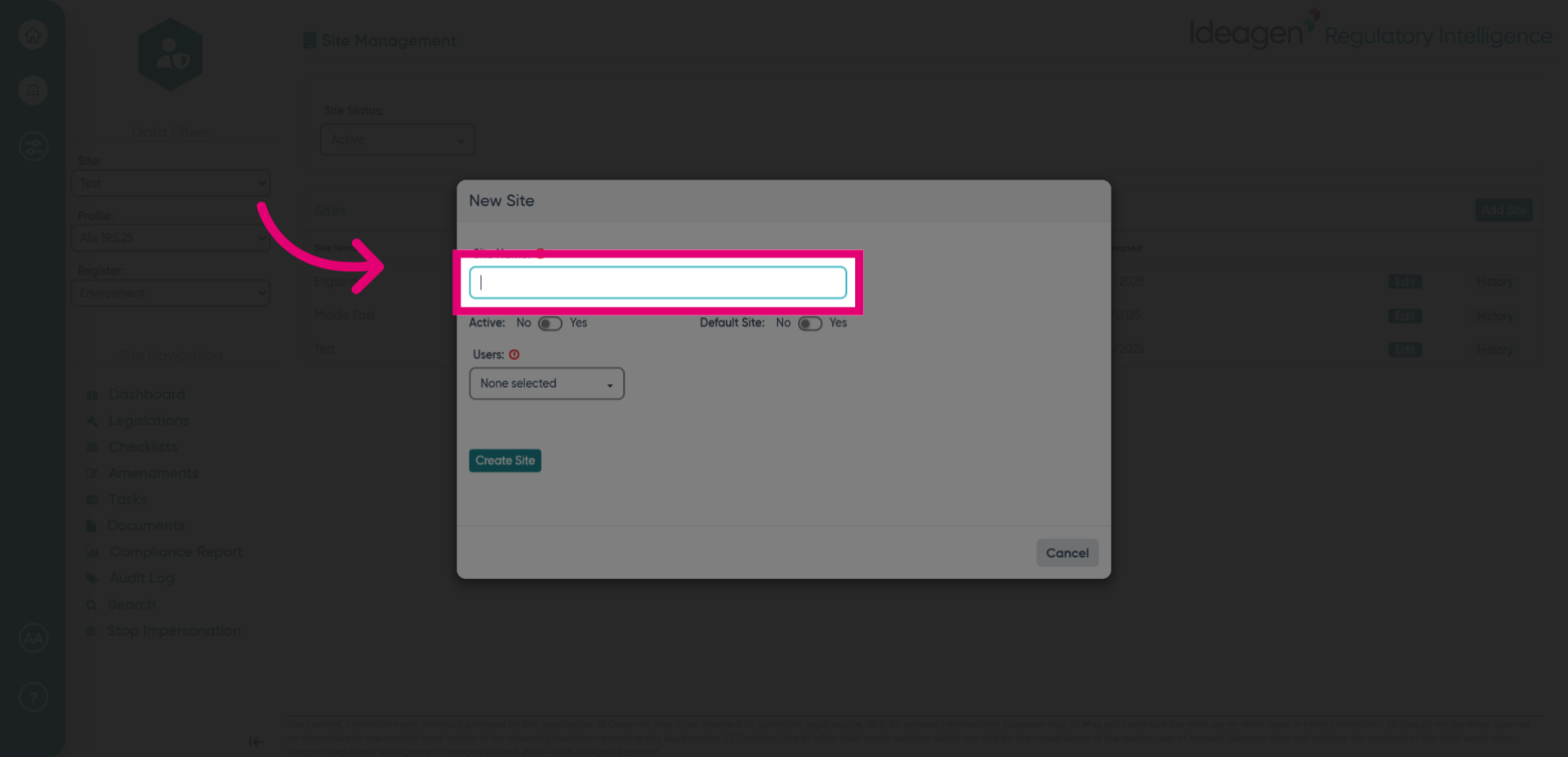
- Click the Active switch to set the Sites Active status.
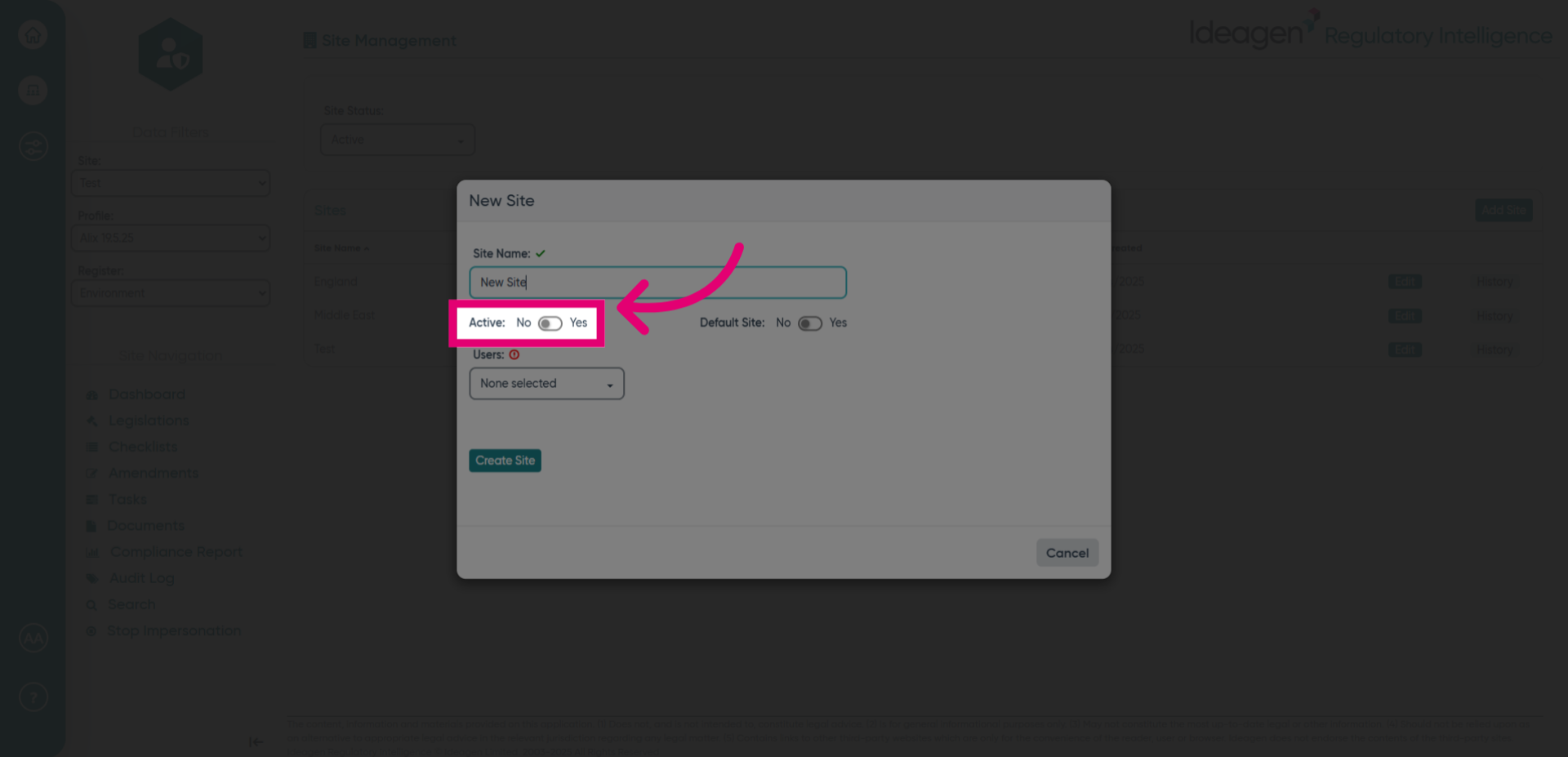
- Click the Default Site switch to set the site as default or not default. This means TBC. Only one site can be default at a time so selecting this will unset any other site as default.
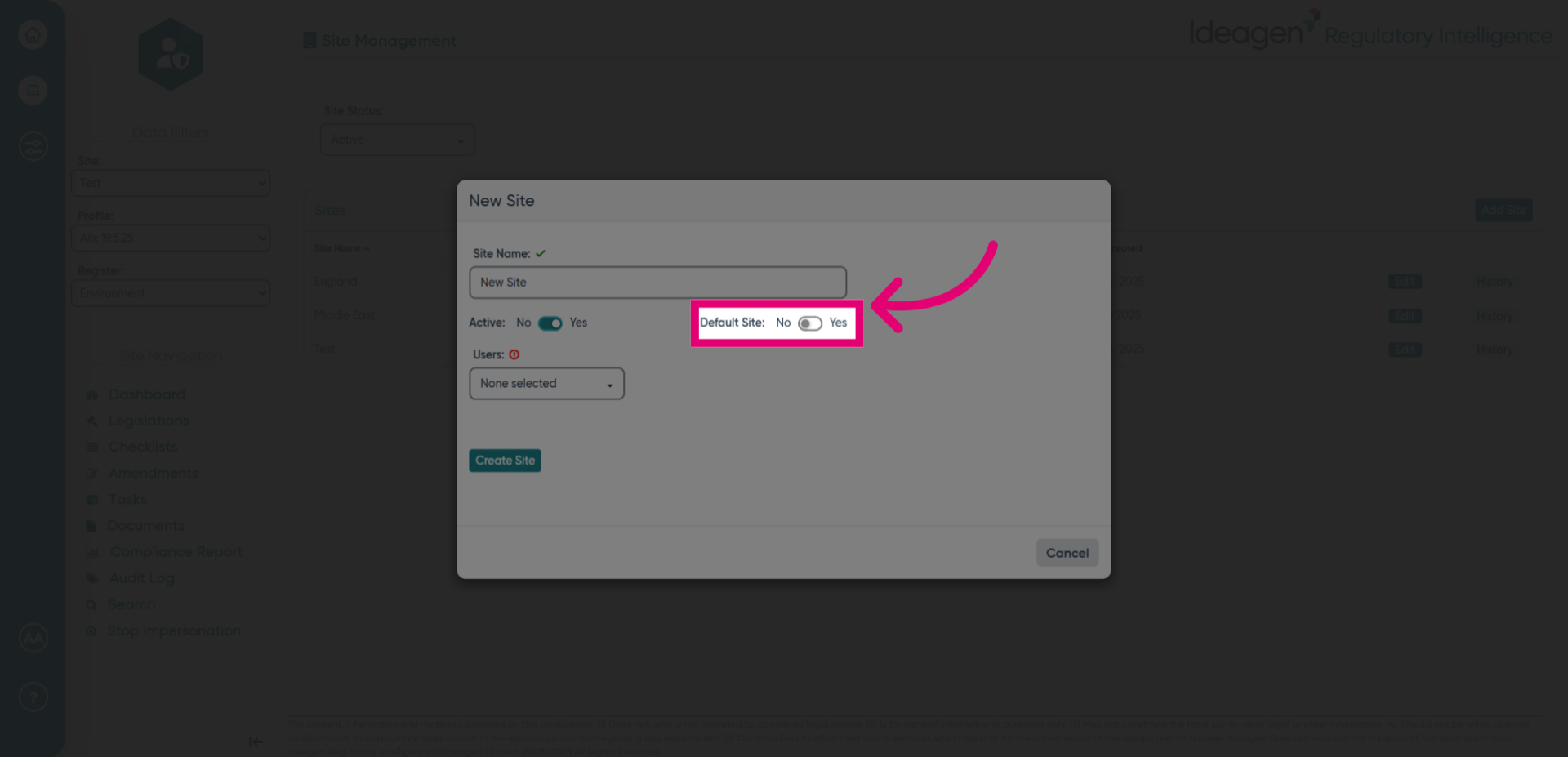
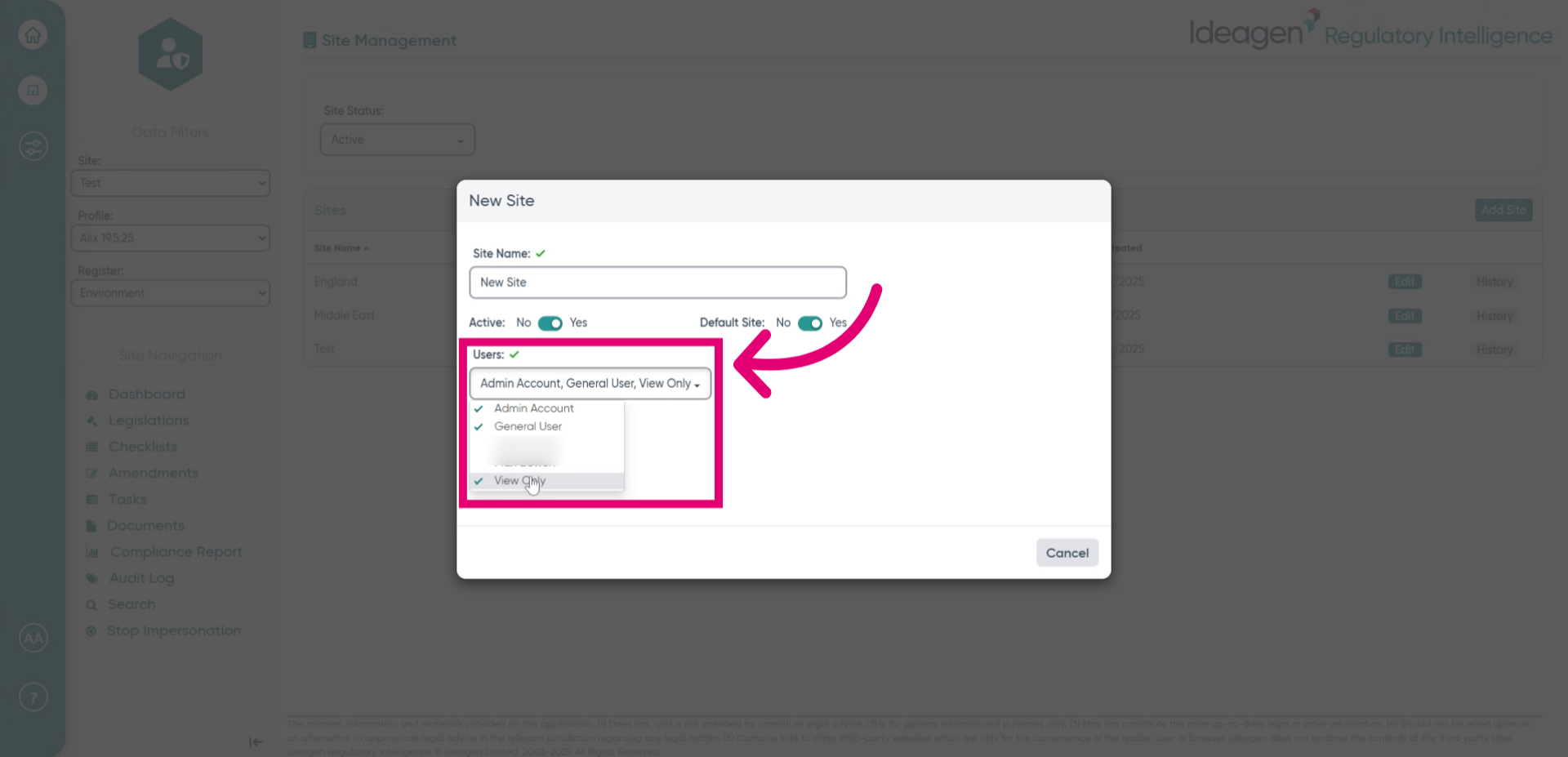
- Fill in the view-only user identifier to complete permission settings.
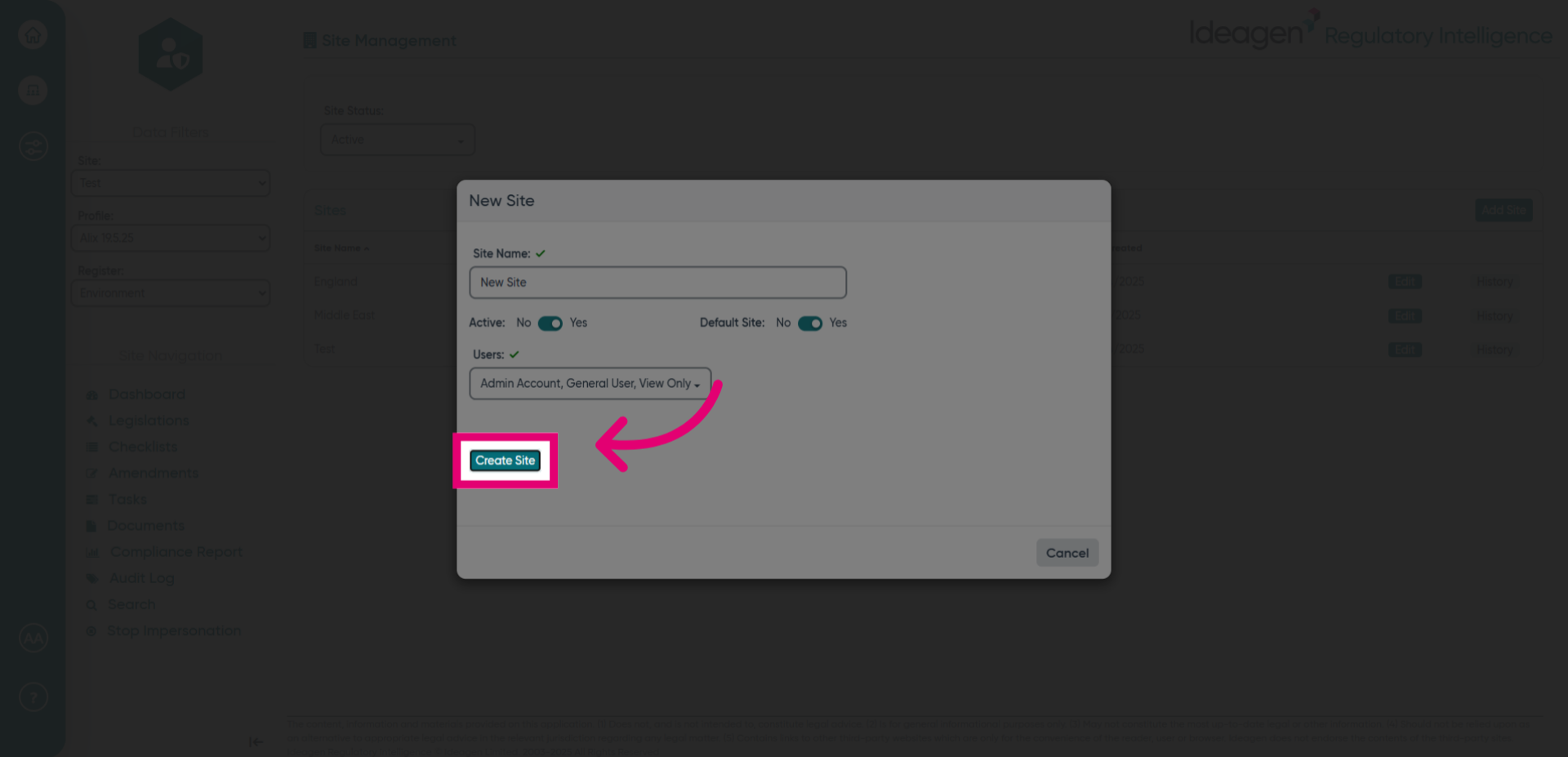
- Click Create Site to finalize and add the new site to your list.
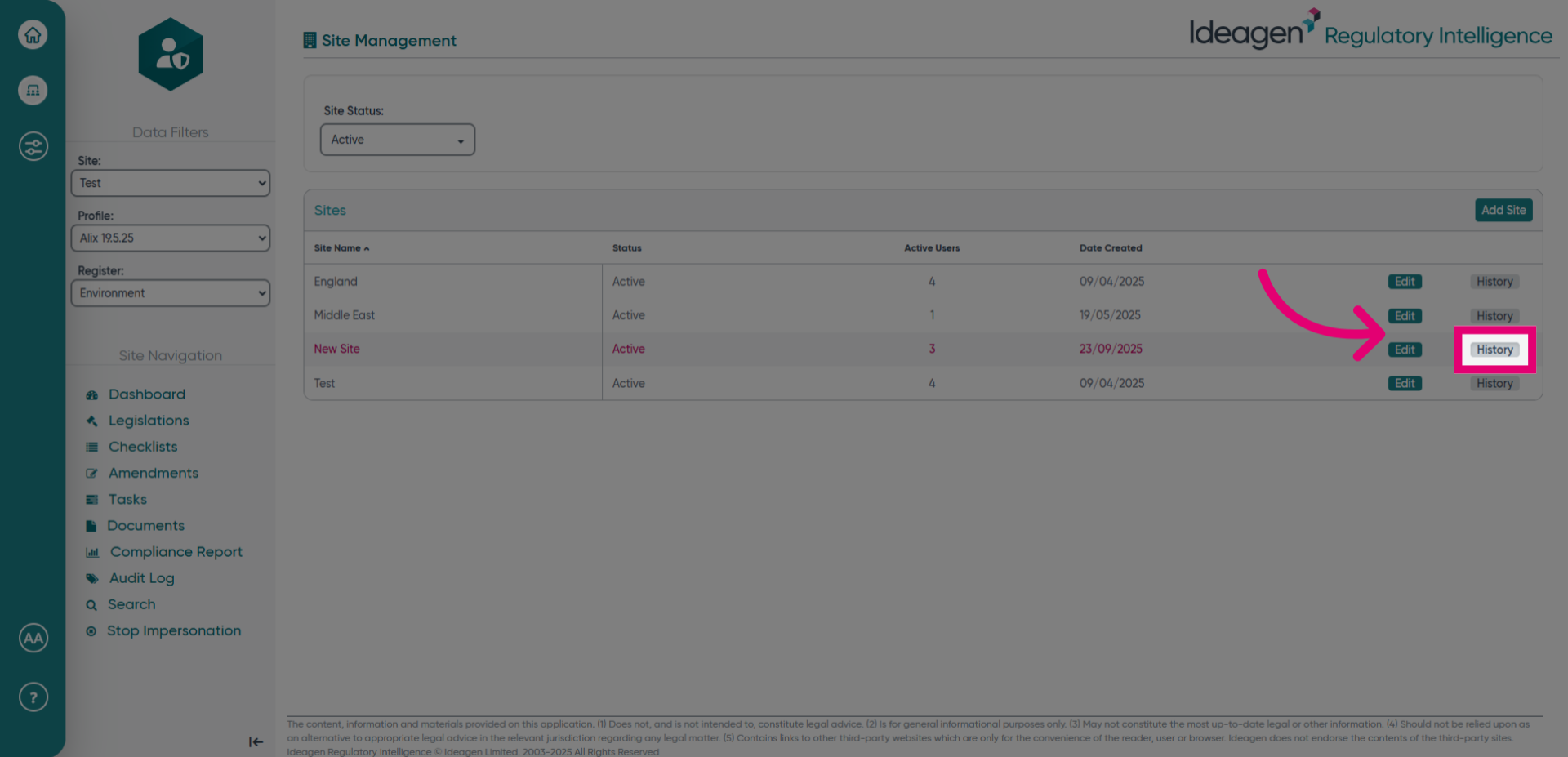
- Click the History tab to review recent changes or activity related to sites.
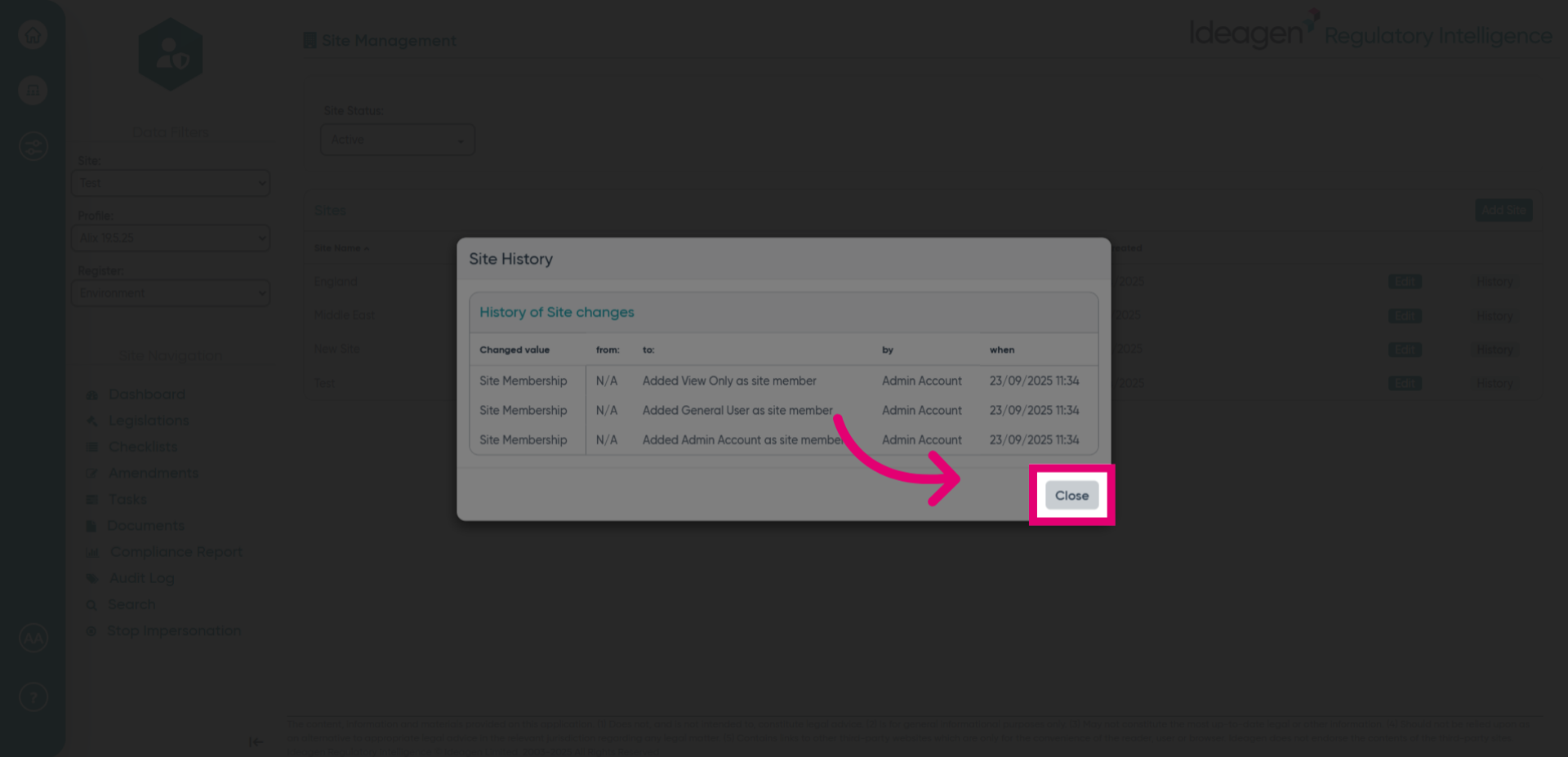
- Click Close to exit the history view and return to the main site management screen.
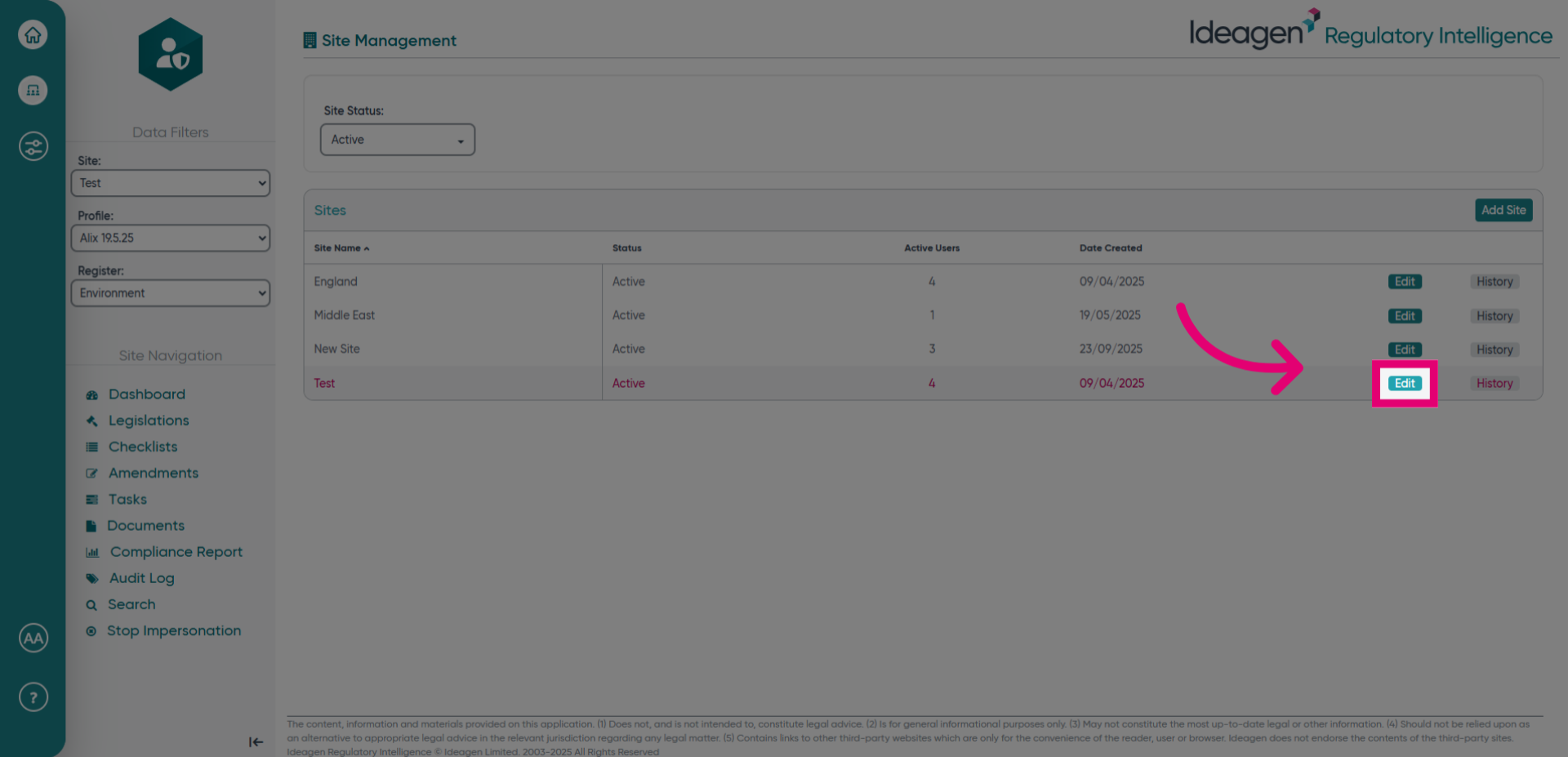
- Click Edit to modify the details of an existing site.
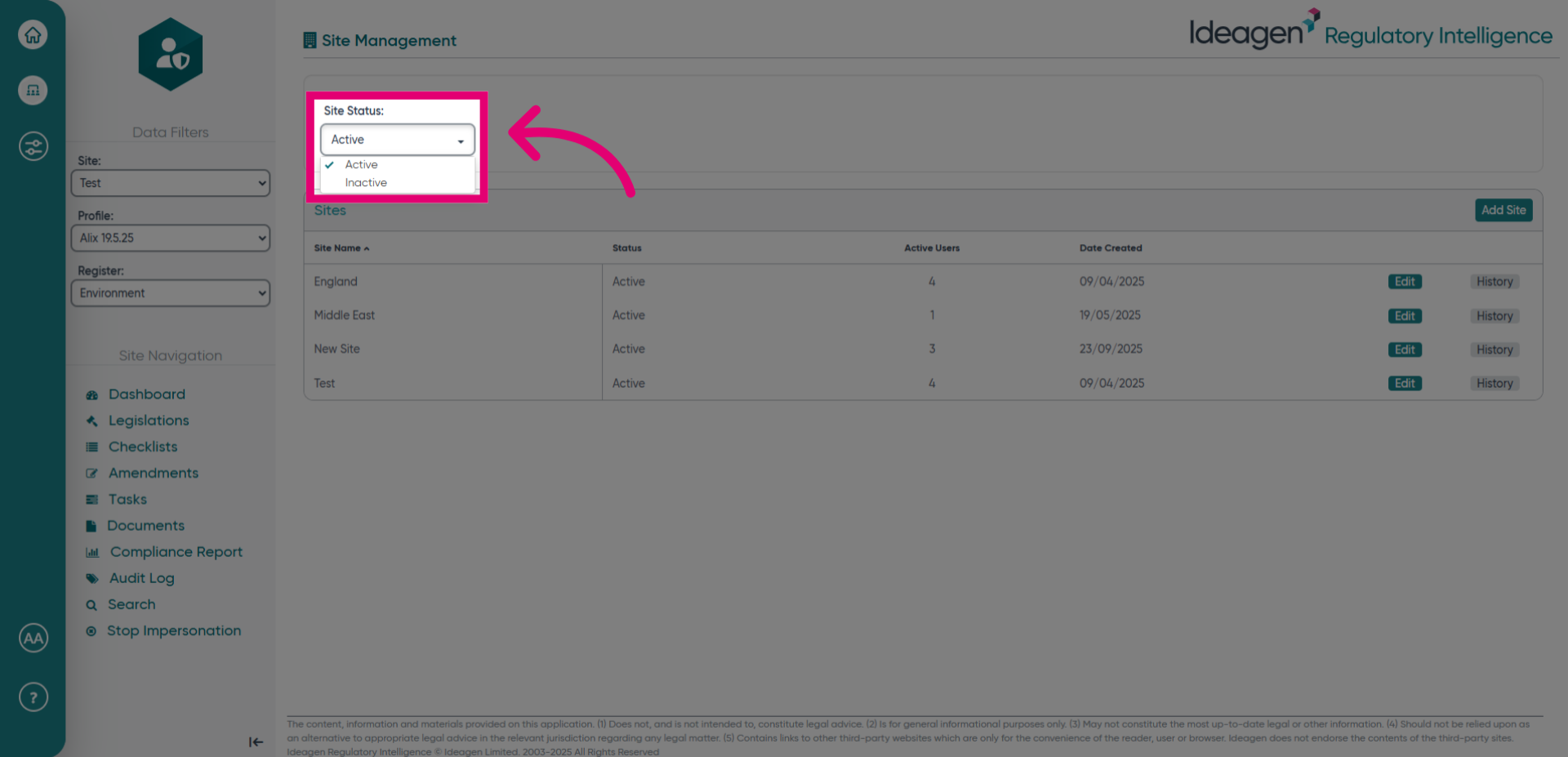
- Click Site Status to display active, inactive or both statuses of Sites in your list.