New article
Recently updated
Creating and configuring profiles

Who is this article for?
Administrators who need to create and configure profiles.
Administrator permissions are required.
This guide provides step-by-step instructions on how to create and configure profiles in the Workrite application.
1. Creating and configuring profiles
1.1 Video
1.2 Steps
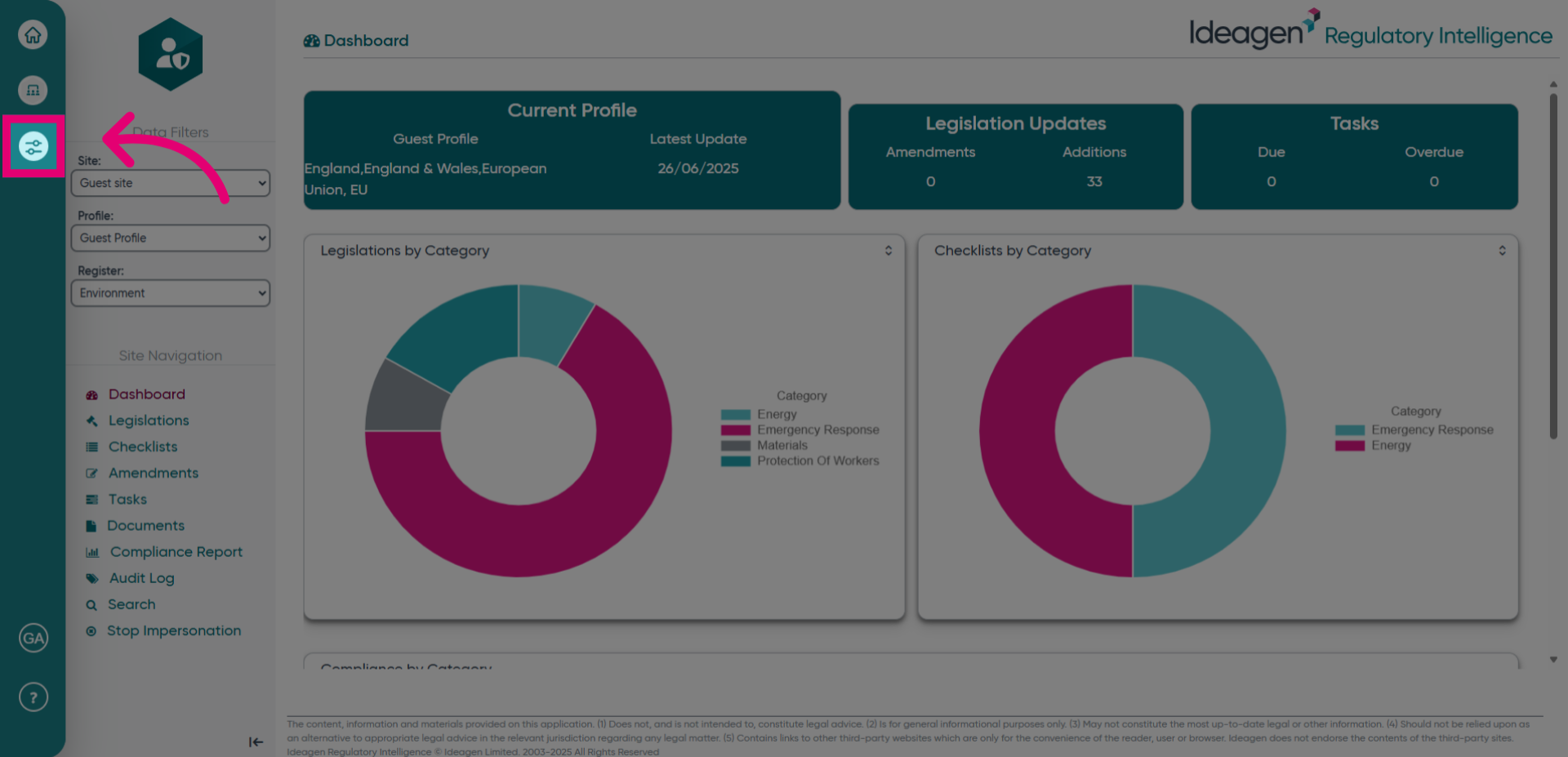
- Locate the administration menu.
- Click the button shown to open the Admin settings.
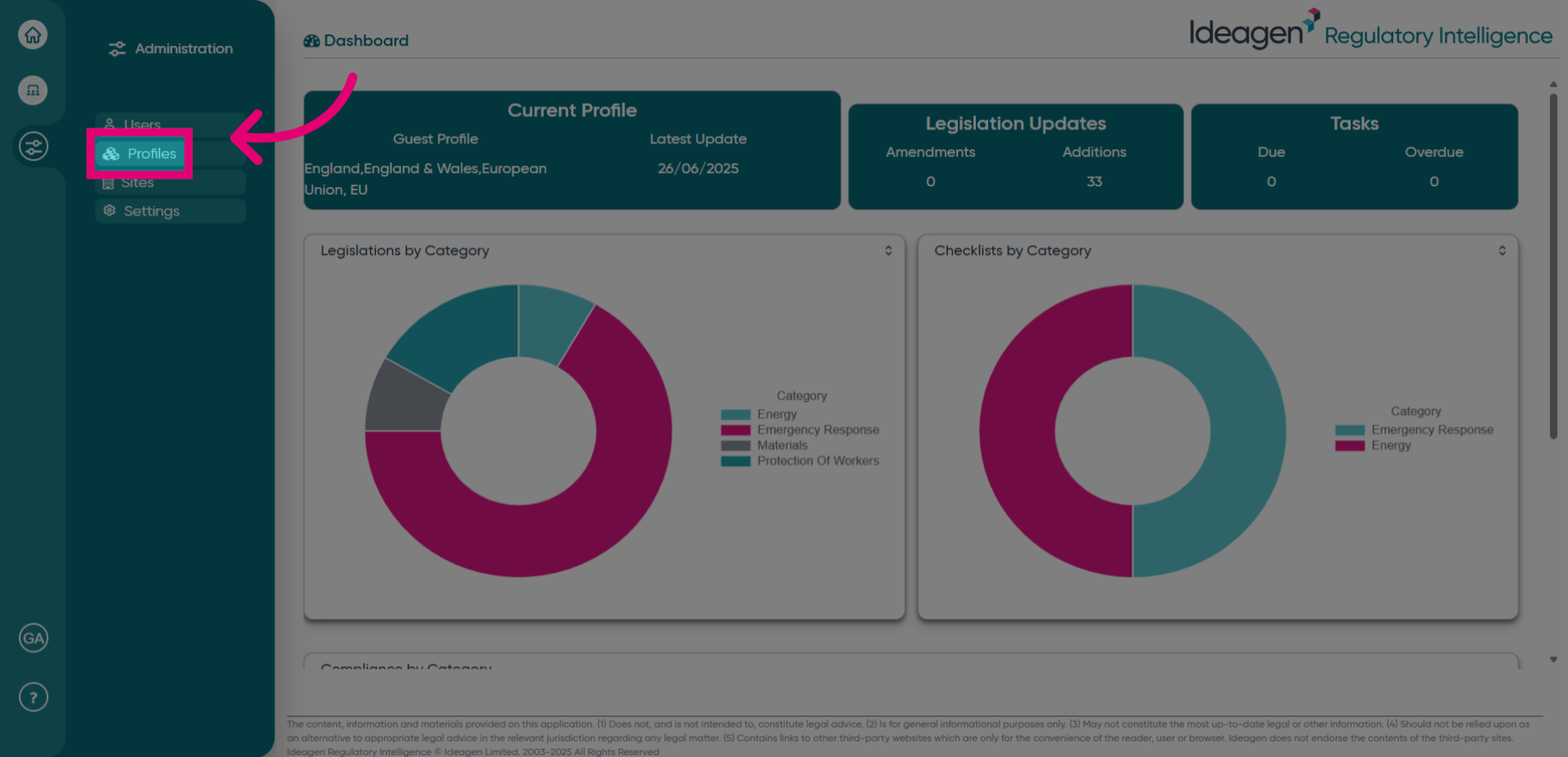
Navigate to the Profiles section by clicking its menu option to manage existing and new profiles.
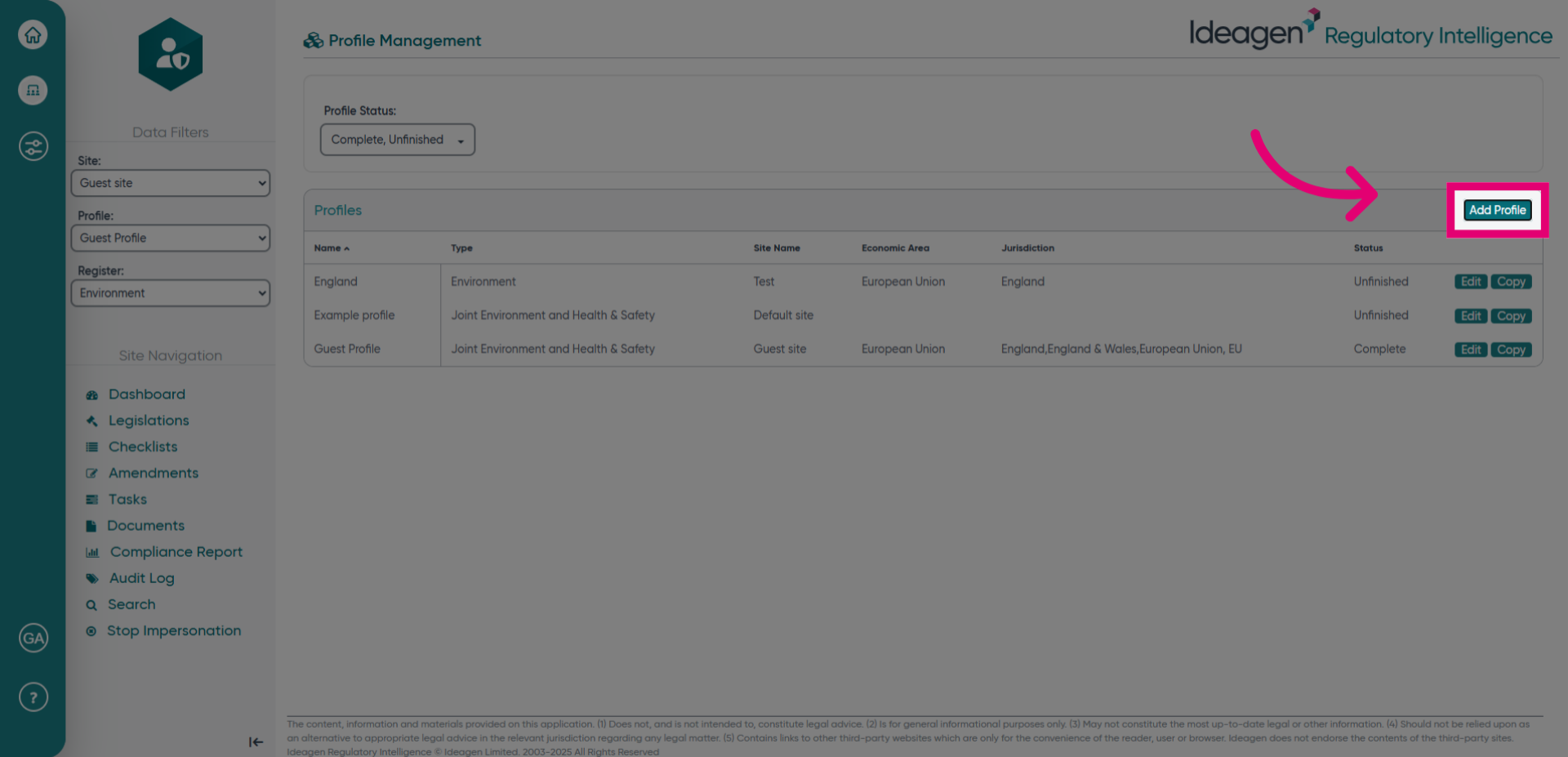
- Here you will see any existing Profiles, and can create new profiles by clicking Add Profile.
- Select the Profile Type drop down menu to specify the profile's focus area.
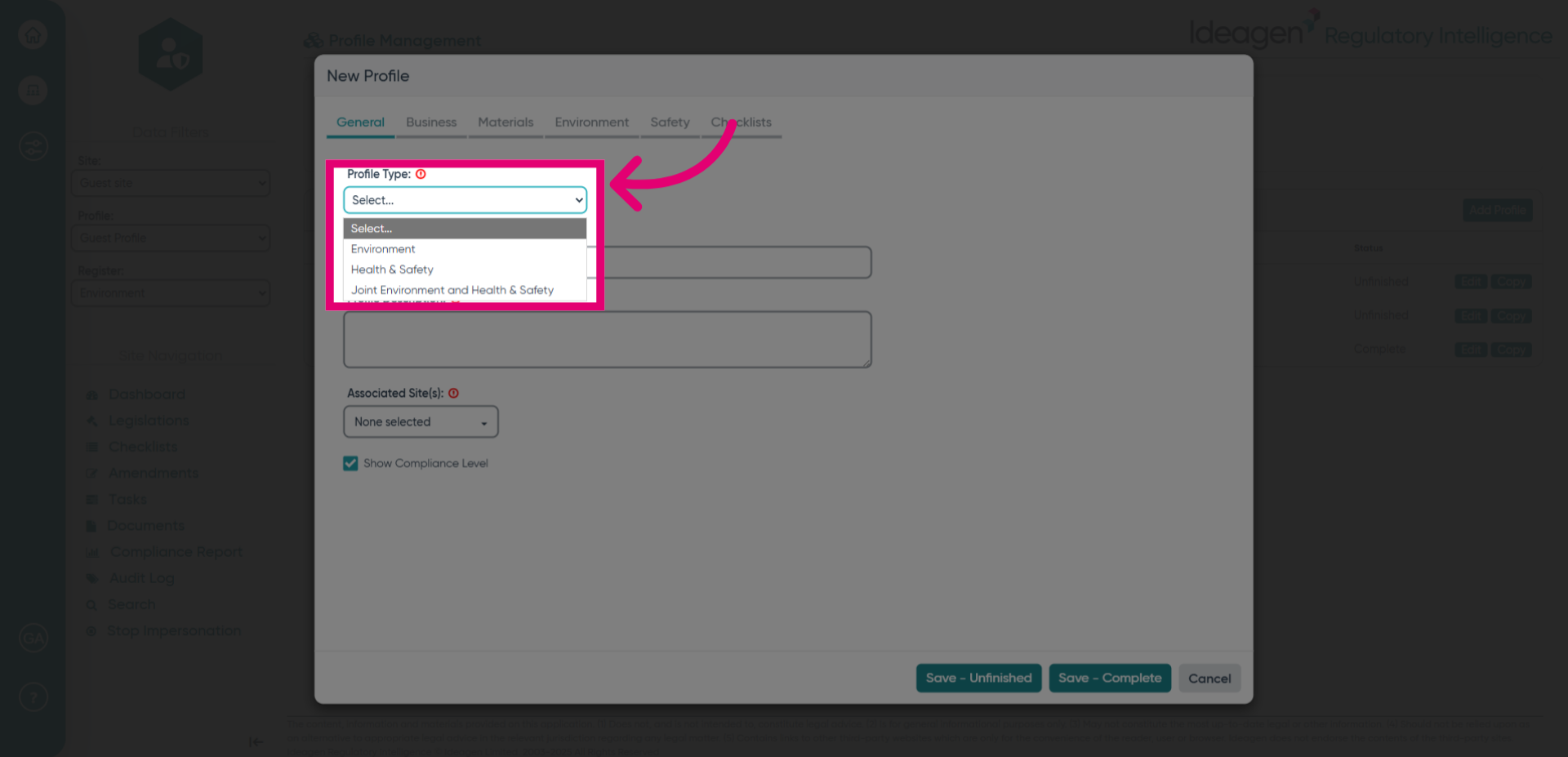
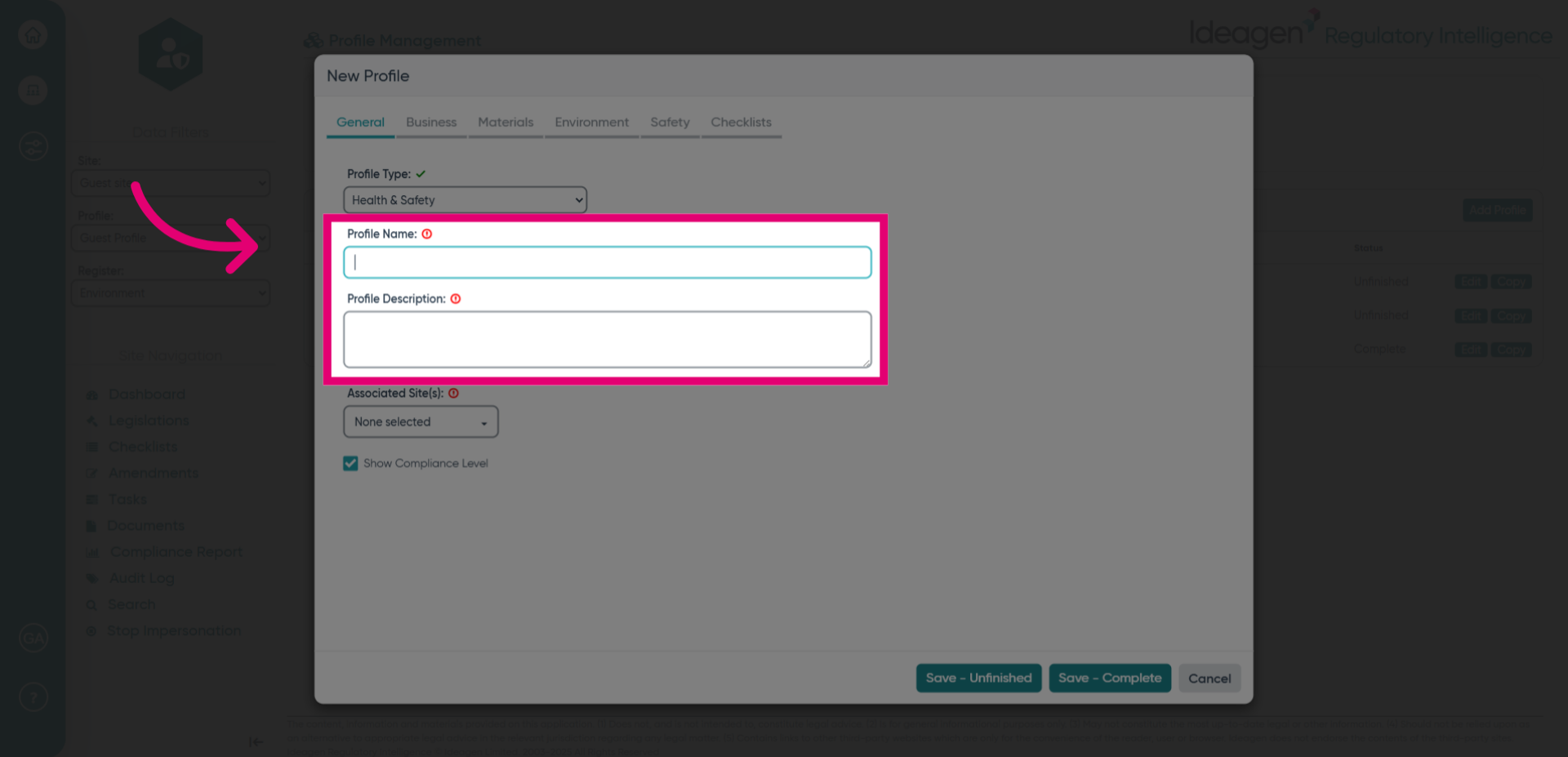
- Click on the Profile Name and Profile Description fields and enter the required text.
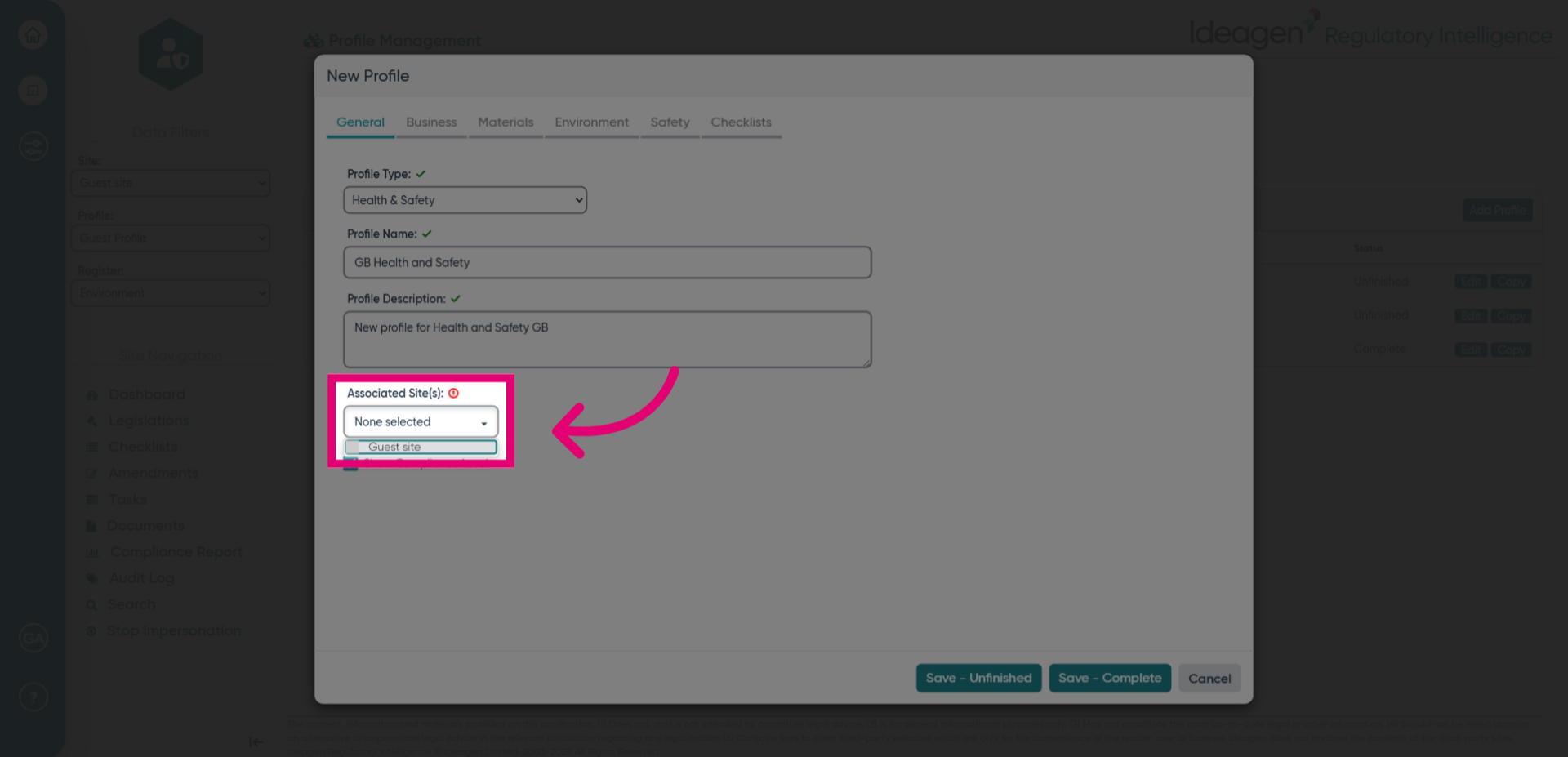
- Click the Associated site option to associate the profile with available sites on your system. You can select multiple sites if necessary.
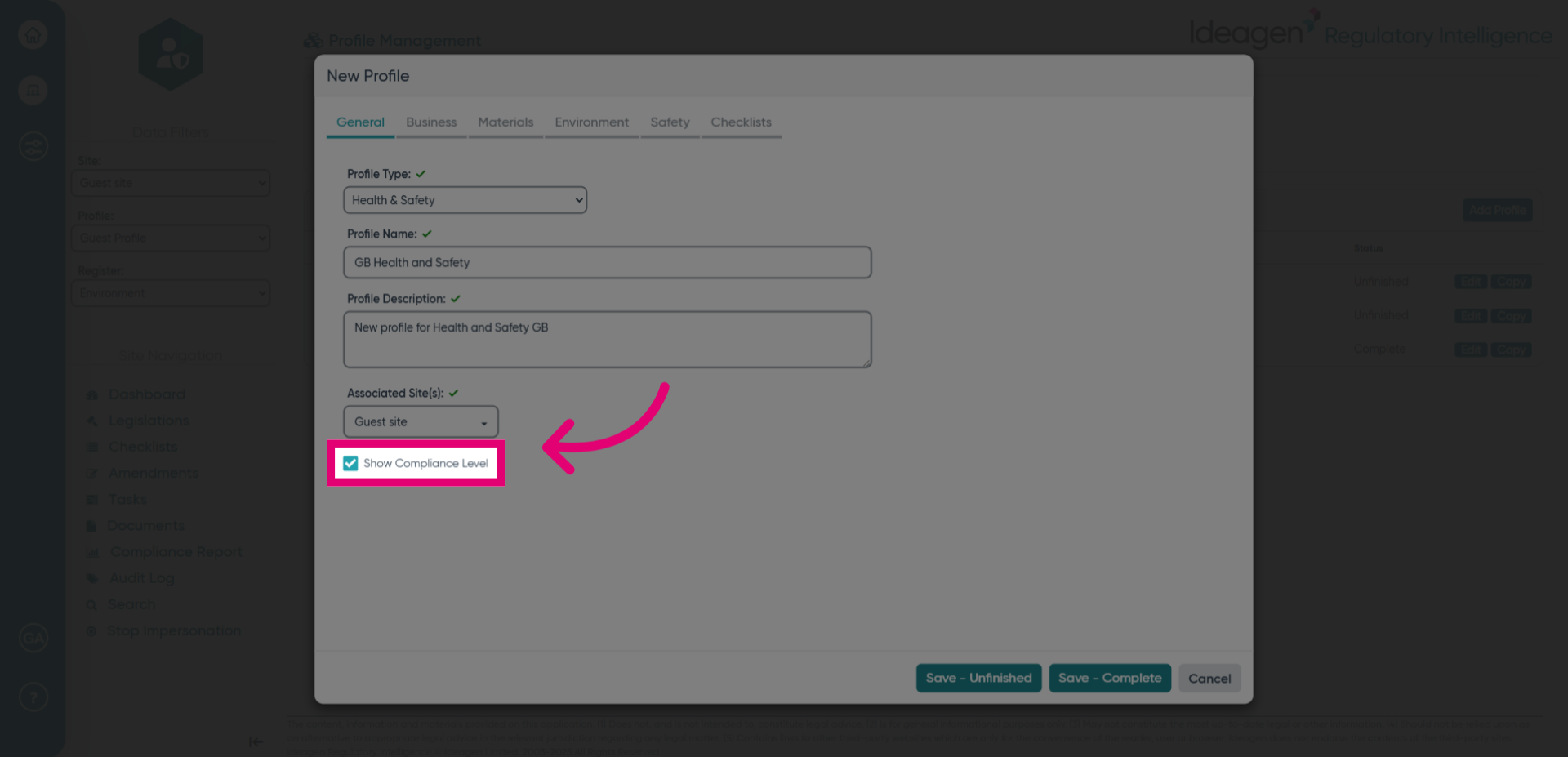
- Click the Show Compliance Level option to enable visibility of compliance status within the profile or deselect this if it is not required.
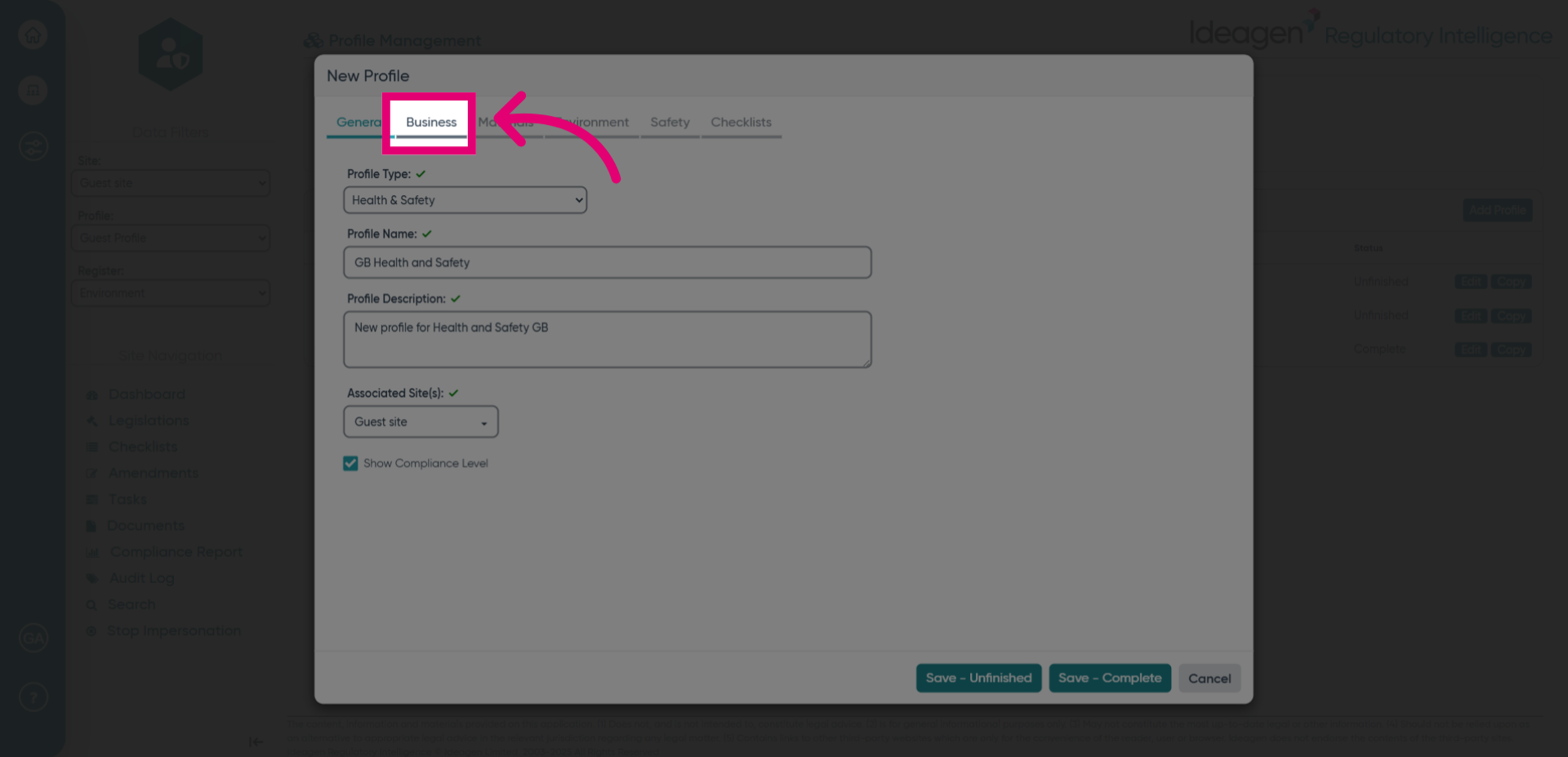
- Click the Business heading.
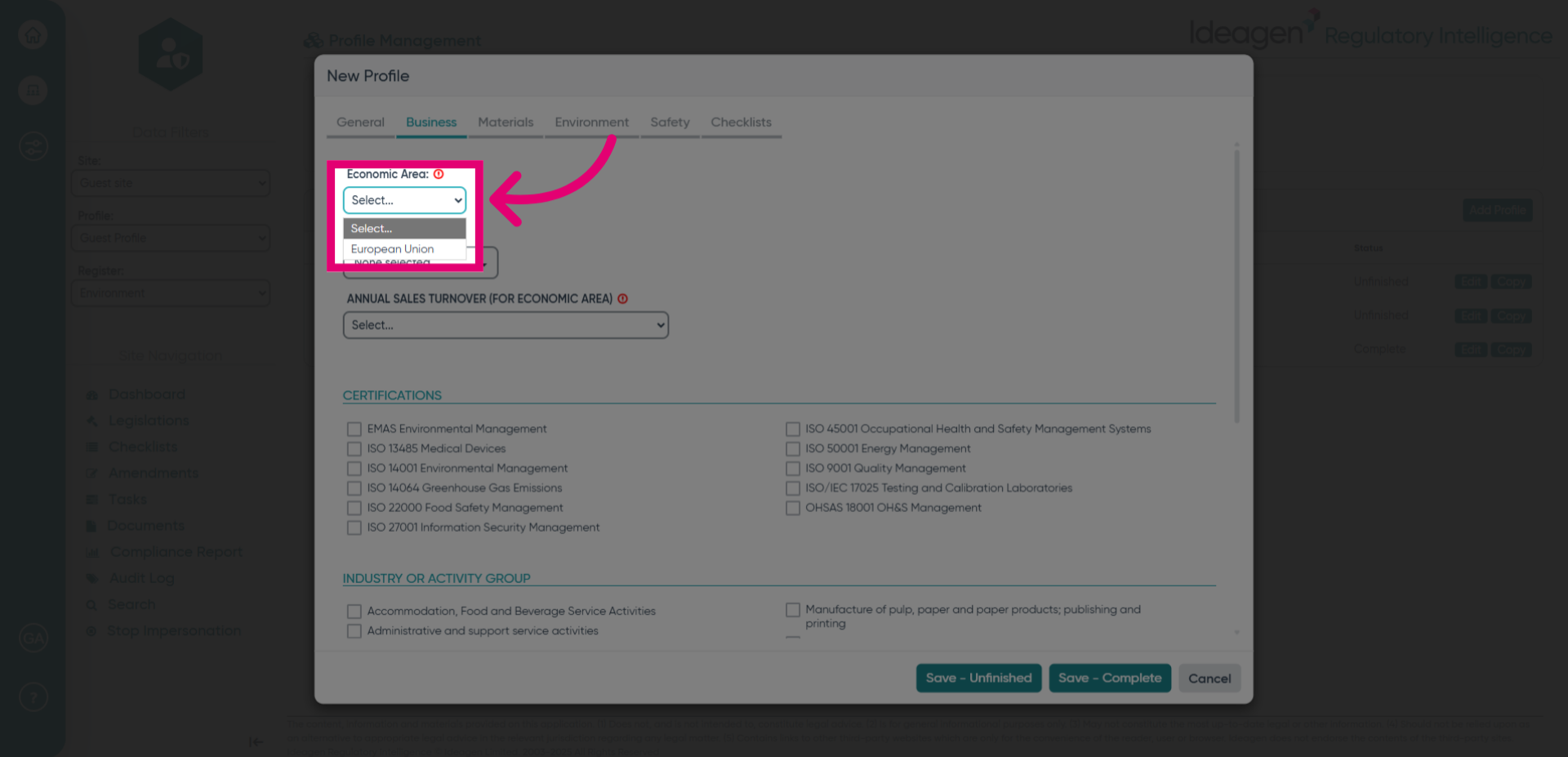
Click the Economic Area dropdown to specify the geographical scope of the profile.
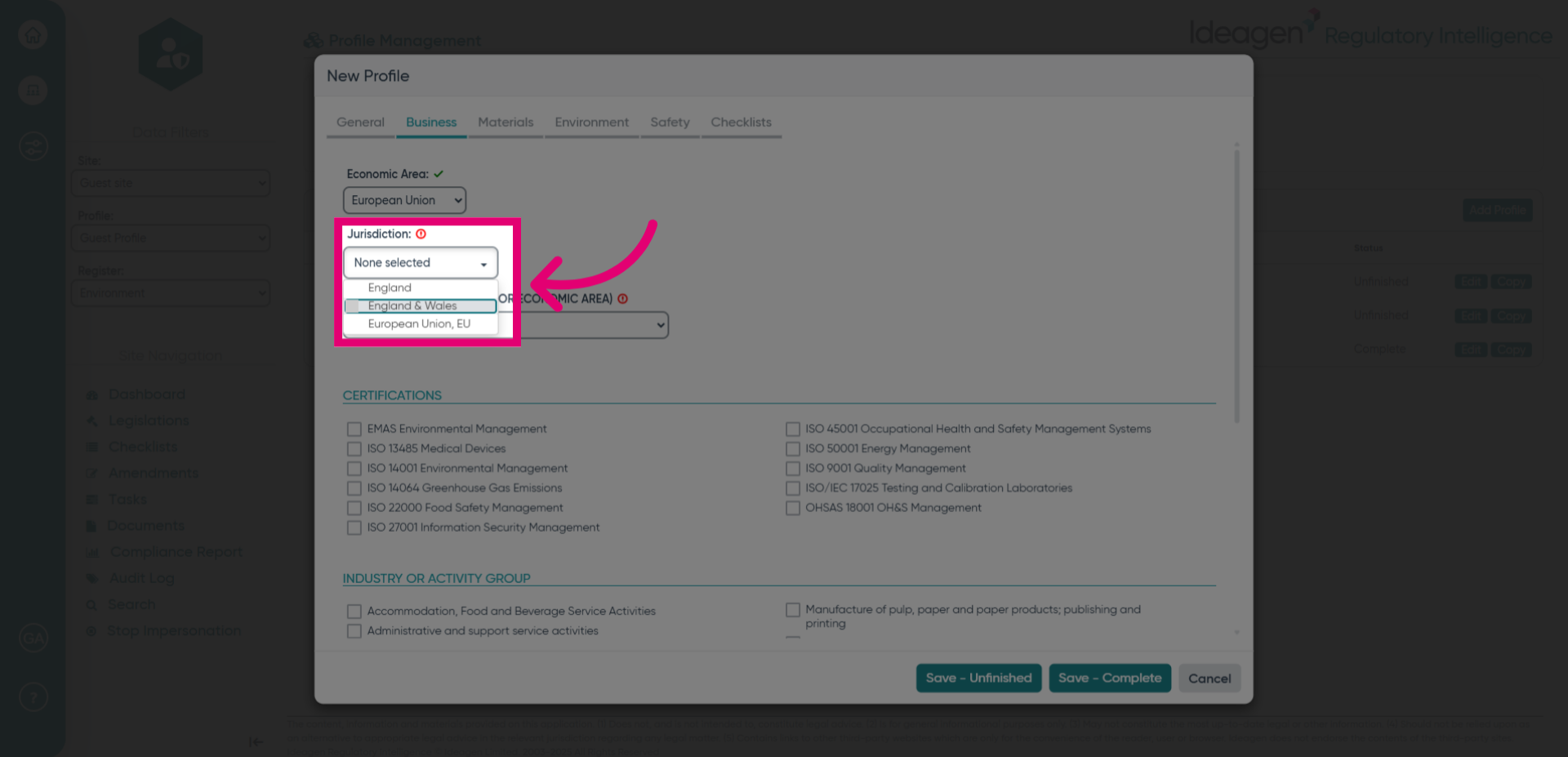
- To specify the profile's jurisdictional area, click the Jurisdiction option and choose one or multiple selections to assign the profile to specific jurisdictions.
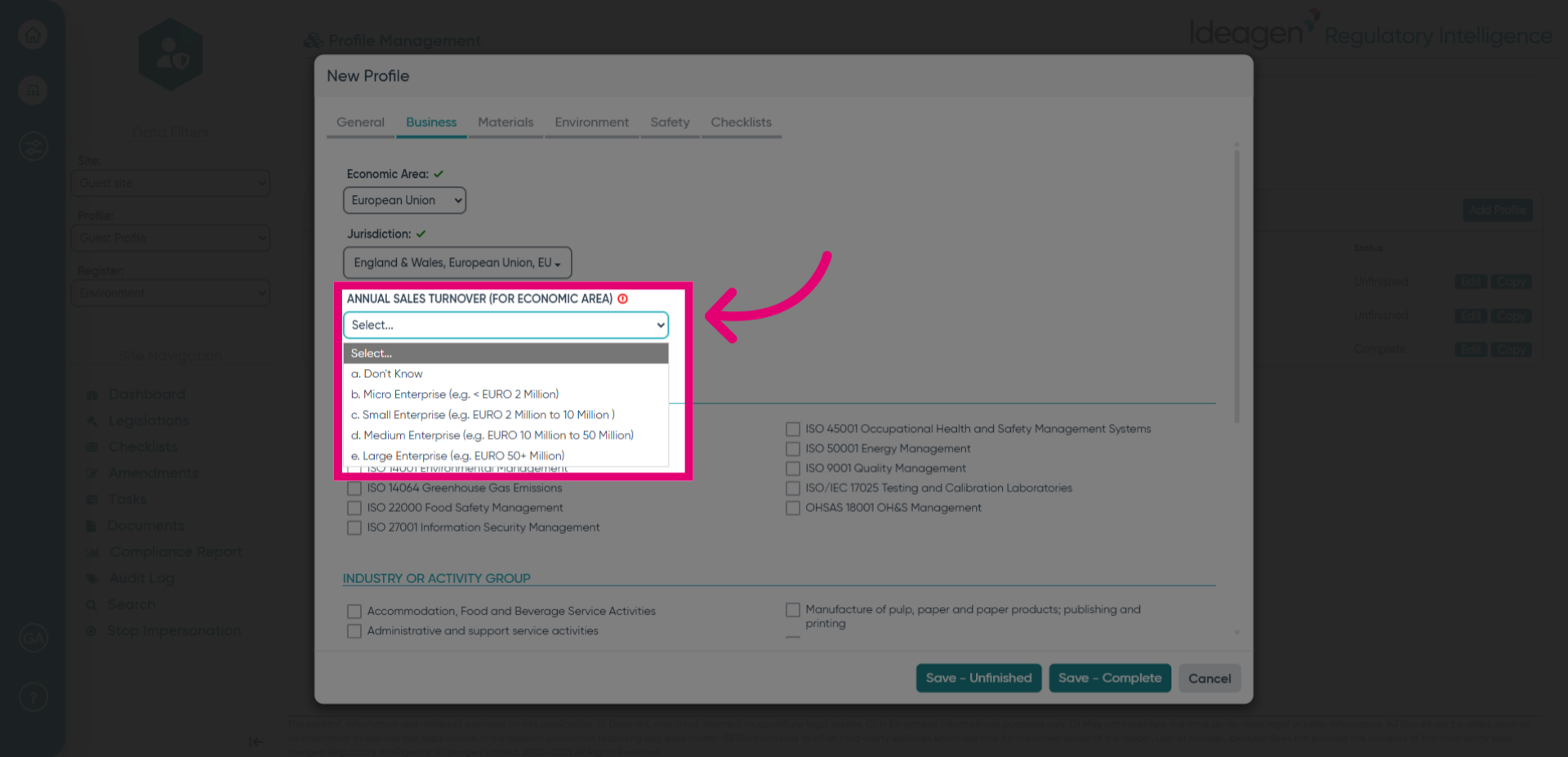
Click the dropdown to select the enterprise size category relevant to the profile.
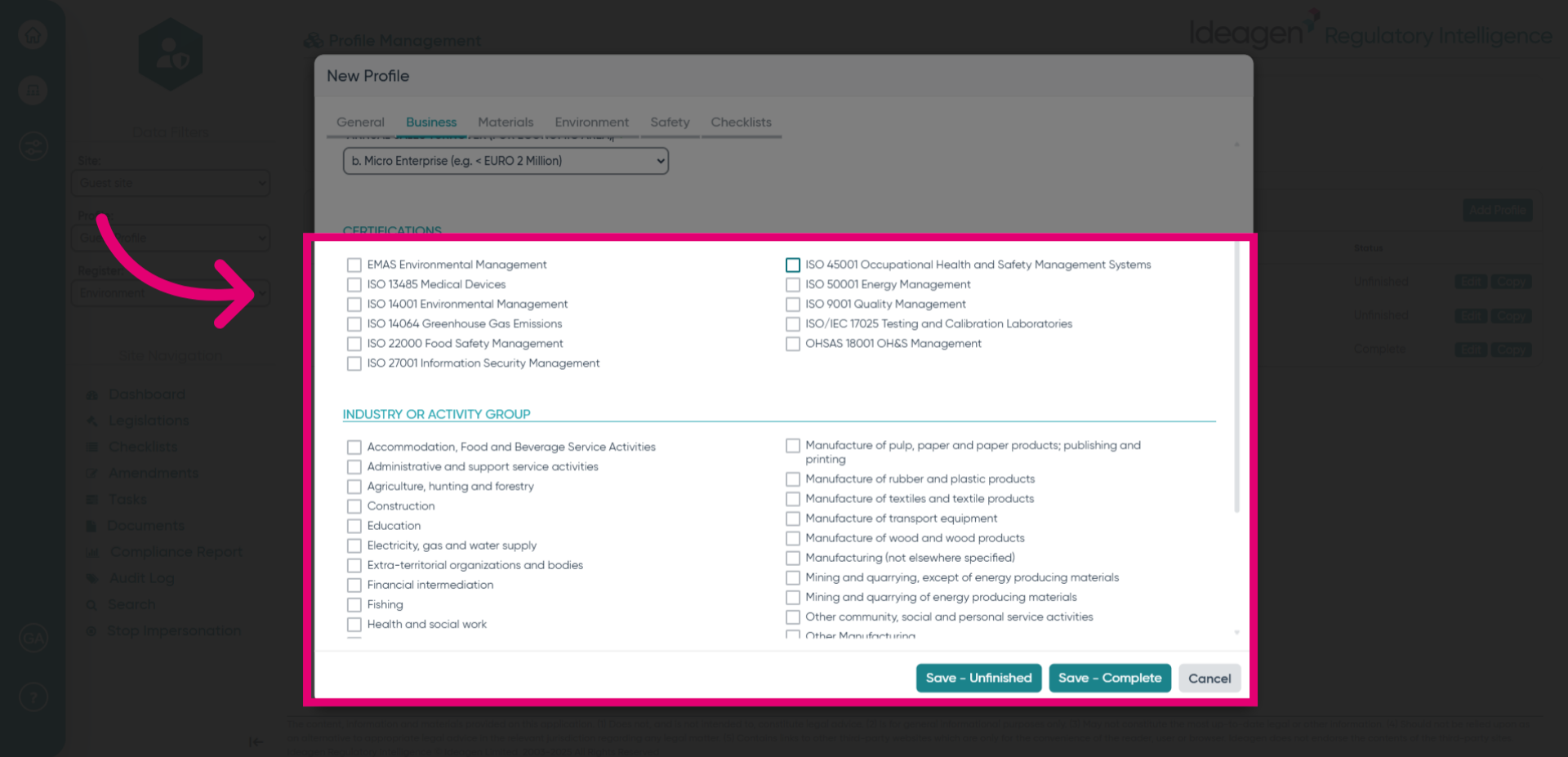
Select any options from this page that are relevant to your profile. You can then select any of the others.
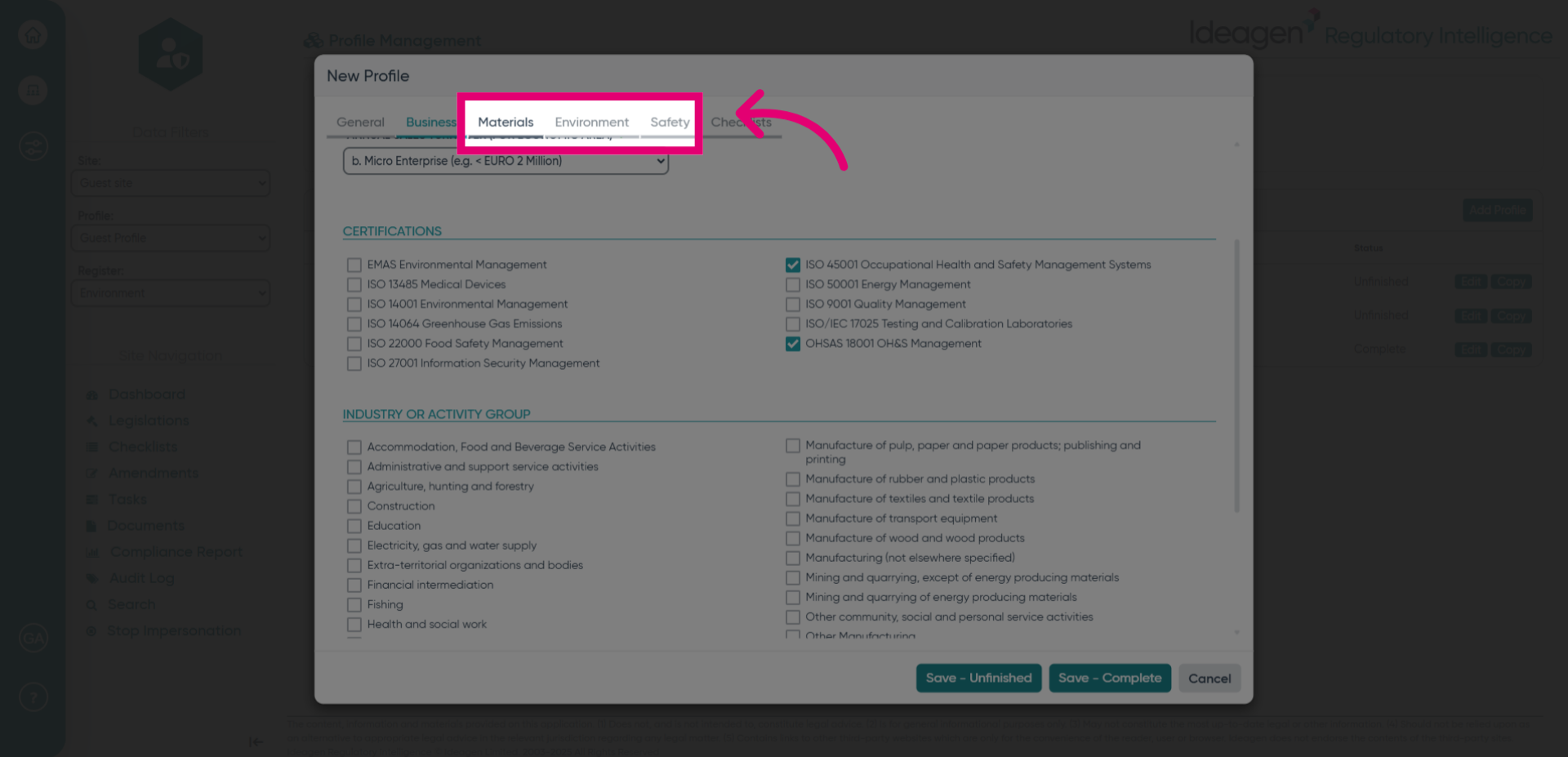
Click the Materials section to specify materials relevant to the profile.
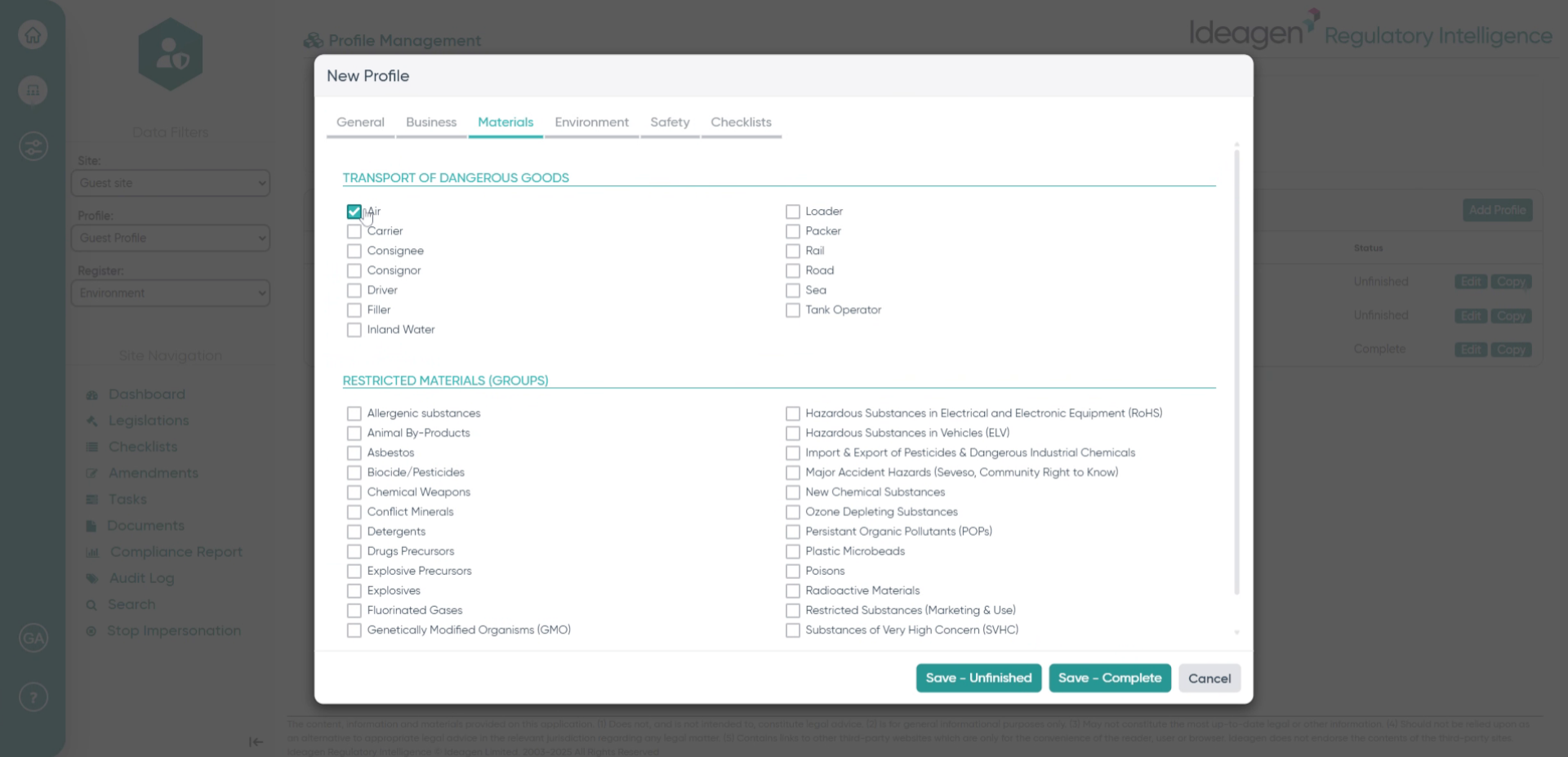
- Fill in the air materials field to detail the profile's material considerations.
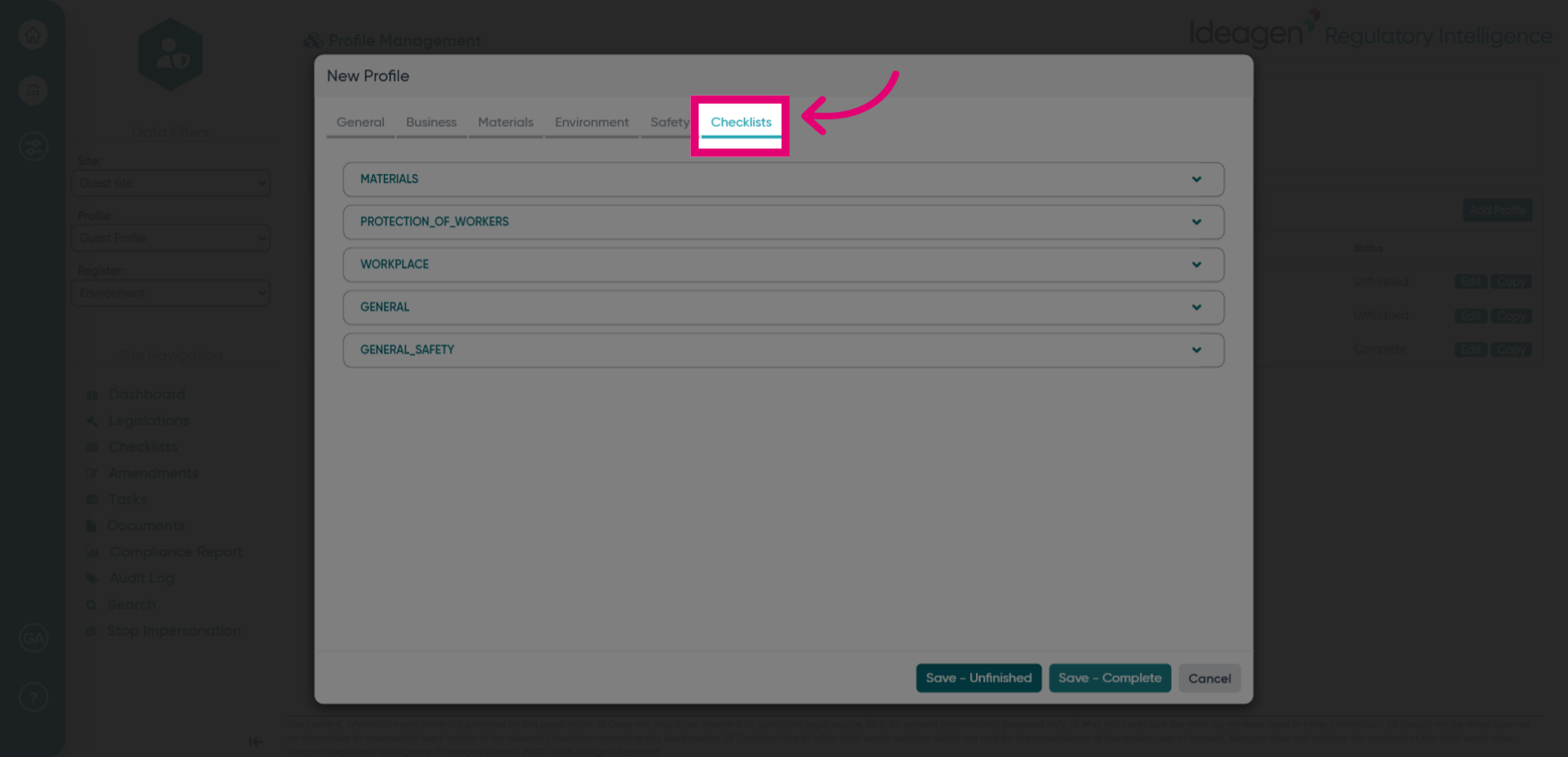
Click the Checklists button to view any checklists associated with the check boxs you have selected for this profile.
- Save or cancel your changes.
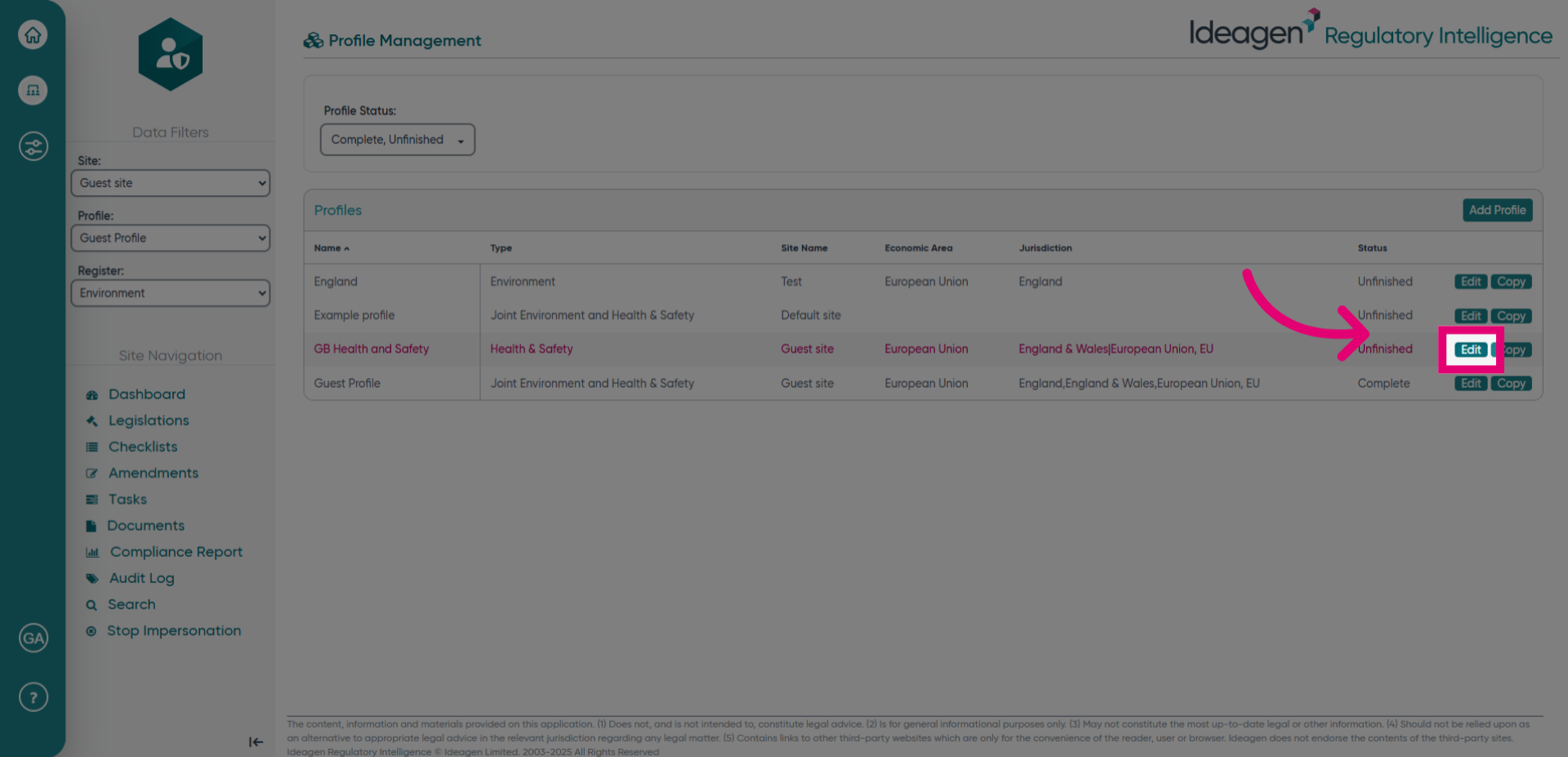
- You will be returned to the Profile Management screen. Here you can click the Edit button to modify the complete or unfinished profile details.
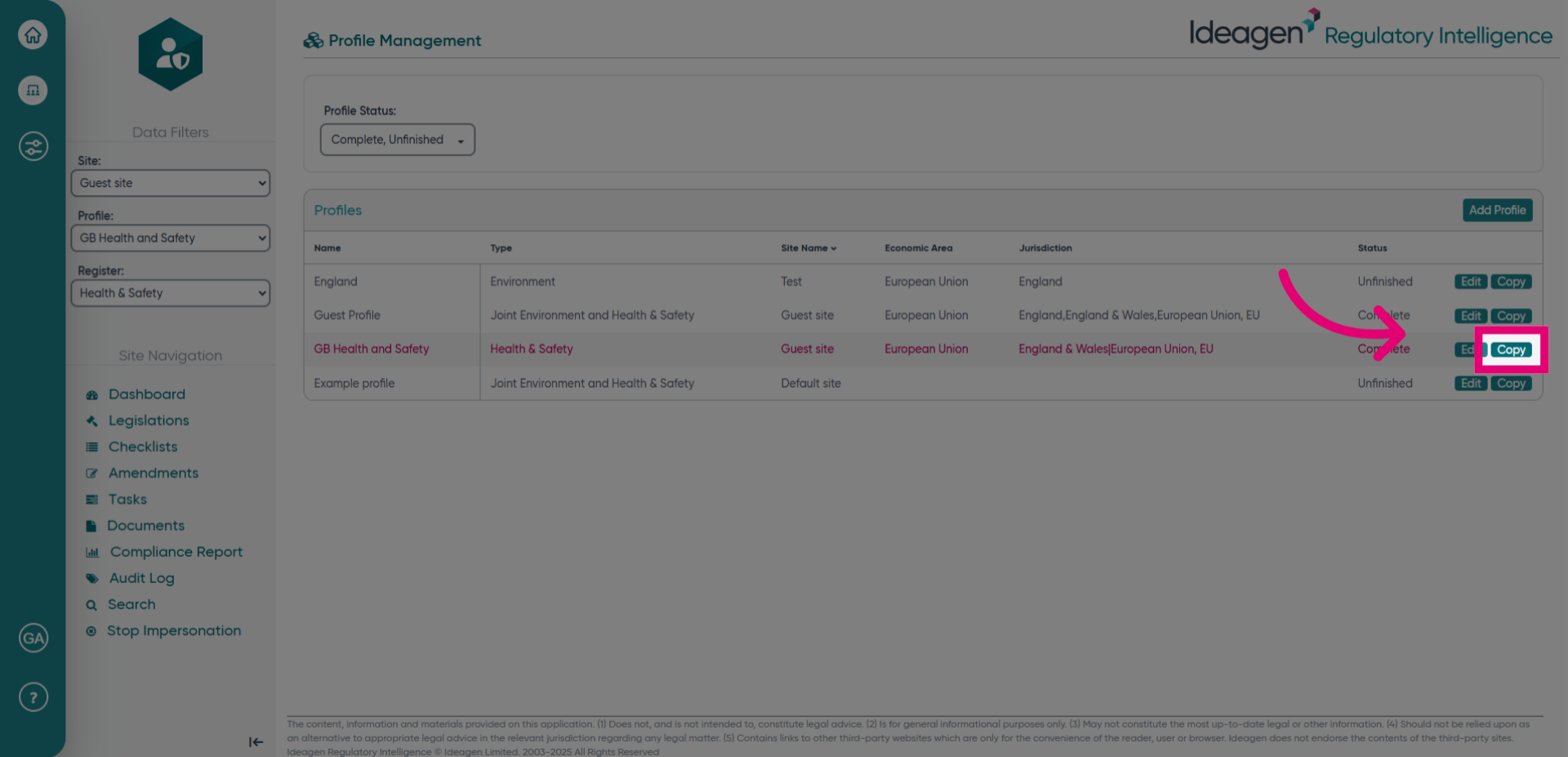
Click the Copy button to duplicate an existing profile which you can modify once it has been copied.
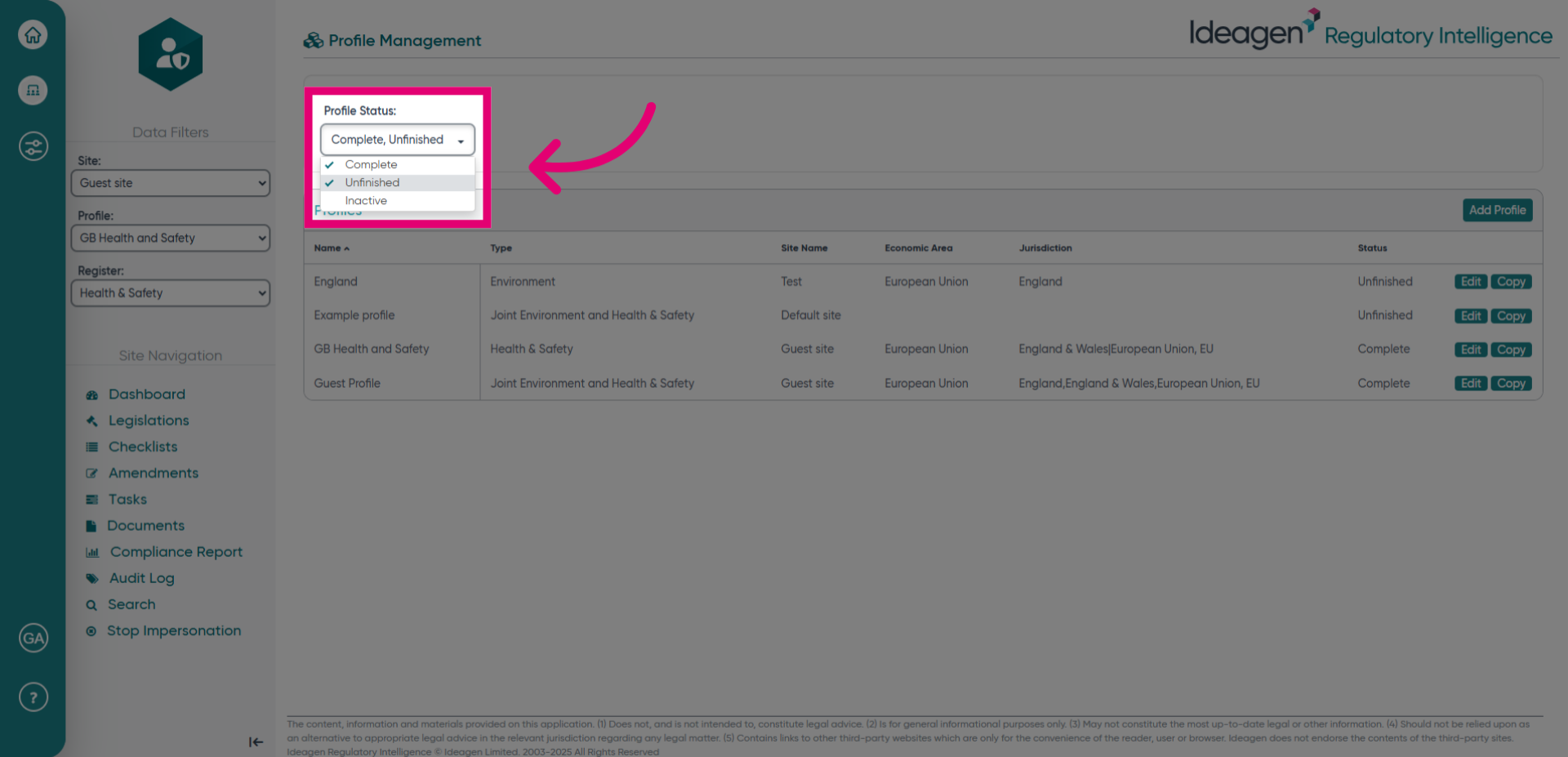
- Click the Profile Status filter to filter between Complete, Unfinished and Inactive profiles.
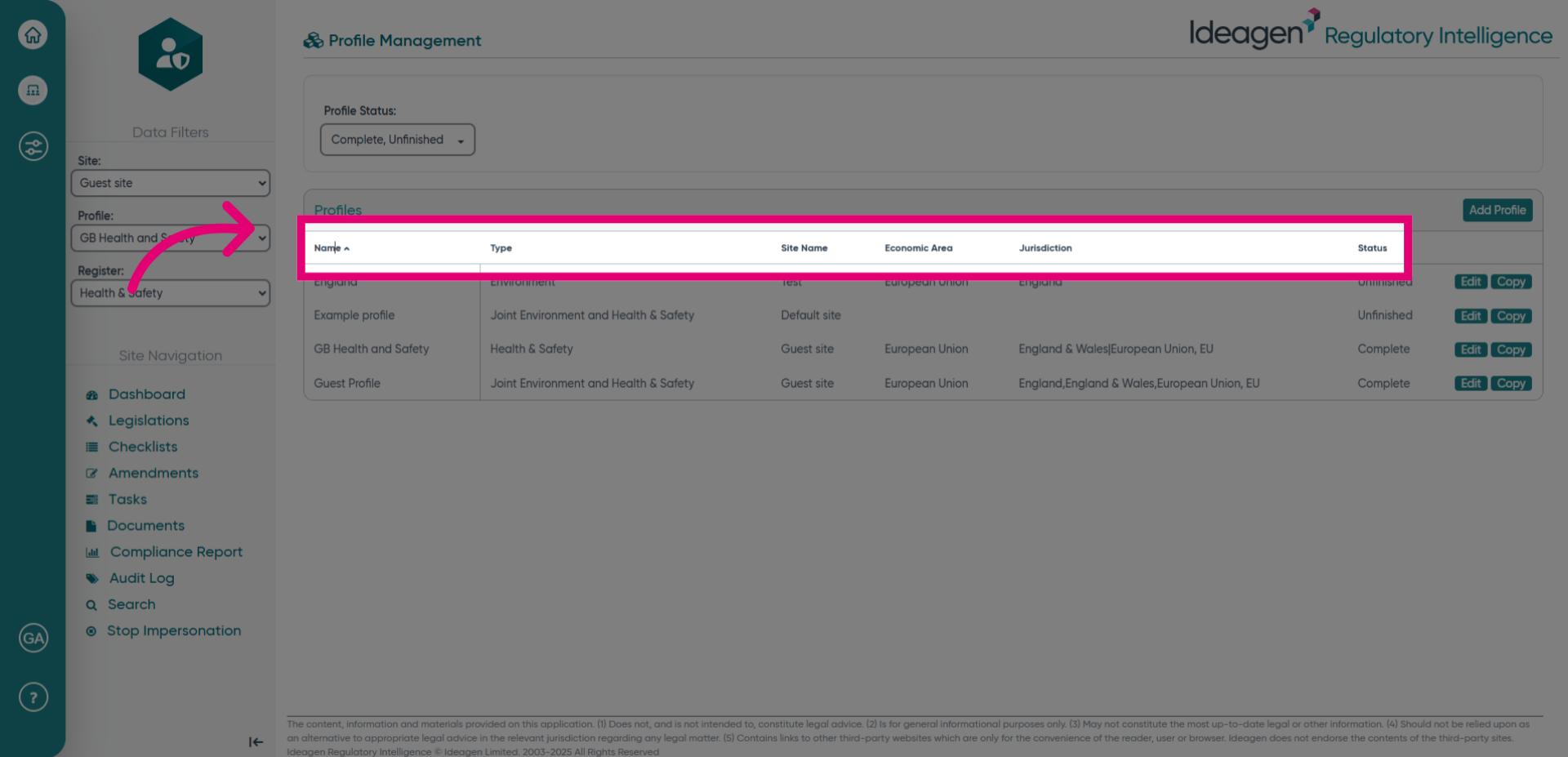
- Click the Name, Type, Site Name, Economic Area, Jurisdiction or Status headings to organise the different Profiles accordingly.